
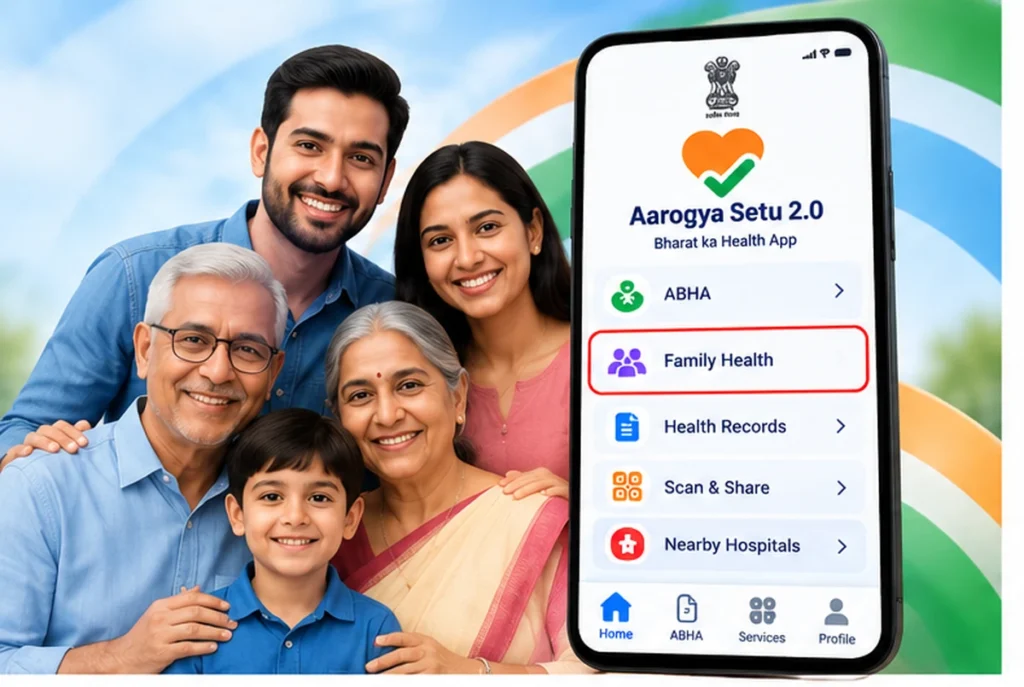
Aarogya Setu 2.0 includes a Family Management feature that helps users add and manage family-member profiles from one account.
For example, you can manage supported health information for your parents, spouse and children without maintaining a separate app login for every family member. Therefore, the feature can make digital-health services easier for families, especially when elderly parents or young children do not use smartphones regularly.
However, adding a family member does not automatically provide access to every medical record or government-health benefit. Some services may still ask for the family member’s identity, ABHA, consent or additional verification.
This guide explains how to add a family member in Aarogya Setu 2.0, how Family Management works, when you may need ABHA, and how to solve common family-profile problems.
Official Aarogya Setu Android App:
https://play.google.com/store/apps/details?id=nic.goi.aarogyasetu
Aarogya Setu 2.0 Family Member Add – Quick Answer
To add a family member in Aarogya Setu 2.0:
- Install or update the official Aarogya Setu app.
- Login to your account.
- Open the Family Management section.
- Select Add Family Member.
- Choose the correct relationship.
- Enter the family member’s details.
- Complete any required identity, consent or ABHA verification.
- Review the details carefully.
- Confirm the family profile.
After that, the family member should appear in your Family Management section.
However, the exact button names may change after app updates. Therefore, always follow the instructions that the latest official Aarogya Setu app shows on your screen.
What Is Aarogya Setu 2.0 Family Management?
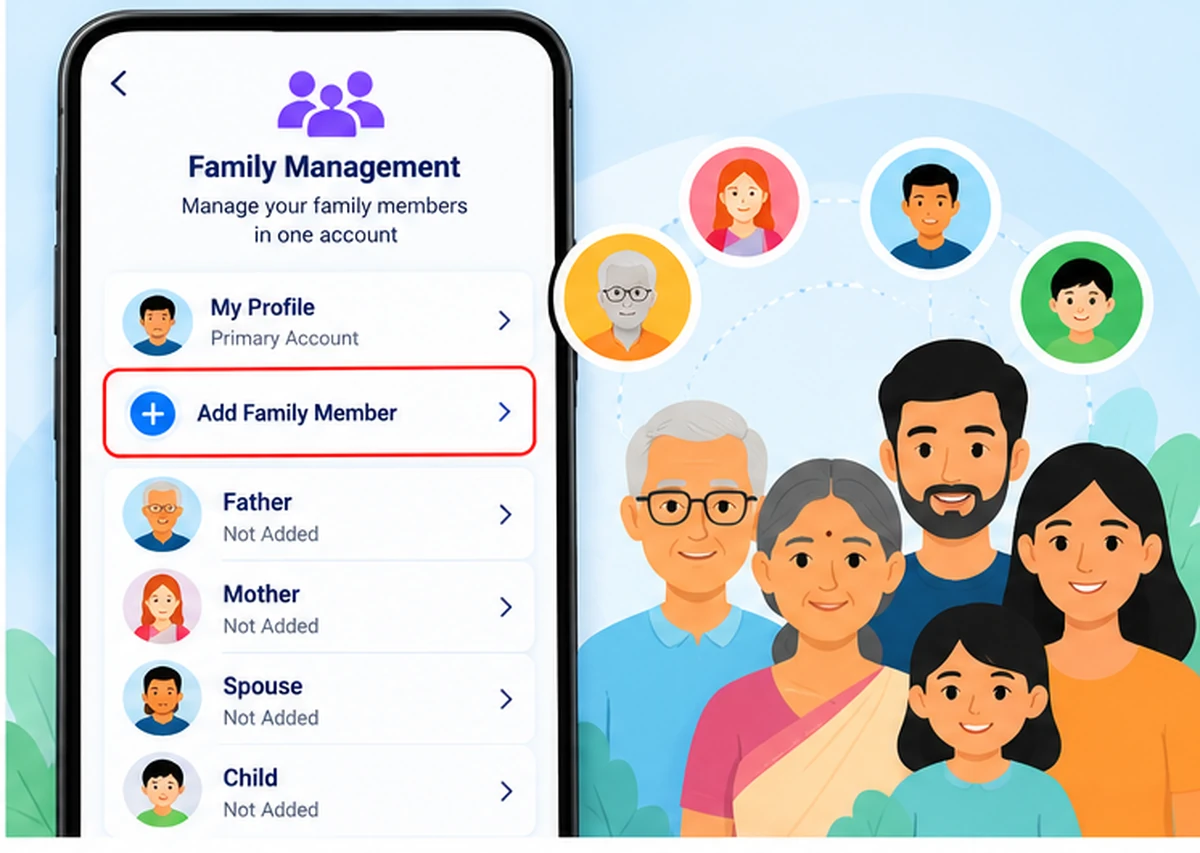
Aarogya Setu 2.0 expanded the original app into a broader digital-health platform connected with the Ayushman Bharat Digital Mission ecosystem.
One of its newer features is Family Management.
With this feature, users can manage supported profiles for family members such as:
- Parents
- Spouse
- Children
from one main account.
As a result, a parent may manage a child’s supported health information, while an adult child may help an elderly parent use available digital-health services.
In addition, Family Management reduces the need for every family member to maintain a separate Aarogya Setu login.
However, some health services still require individual verification or consent. Therefore, Family Management does not bypass identity or privacy requirements.
What Can You Manage for Family Members?
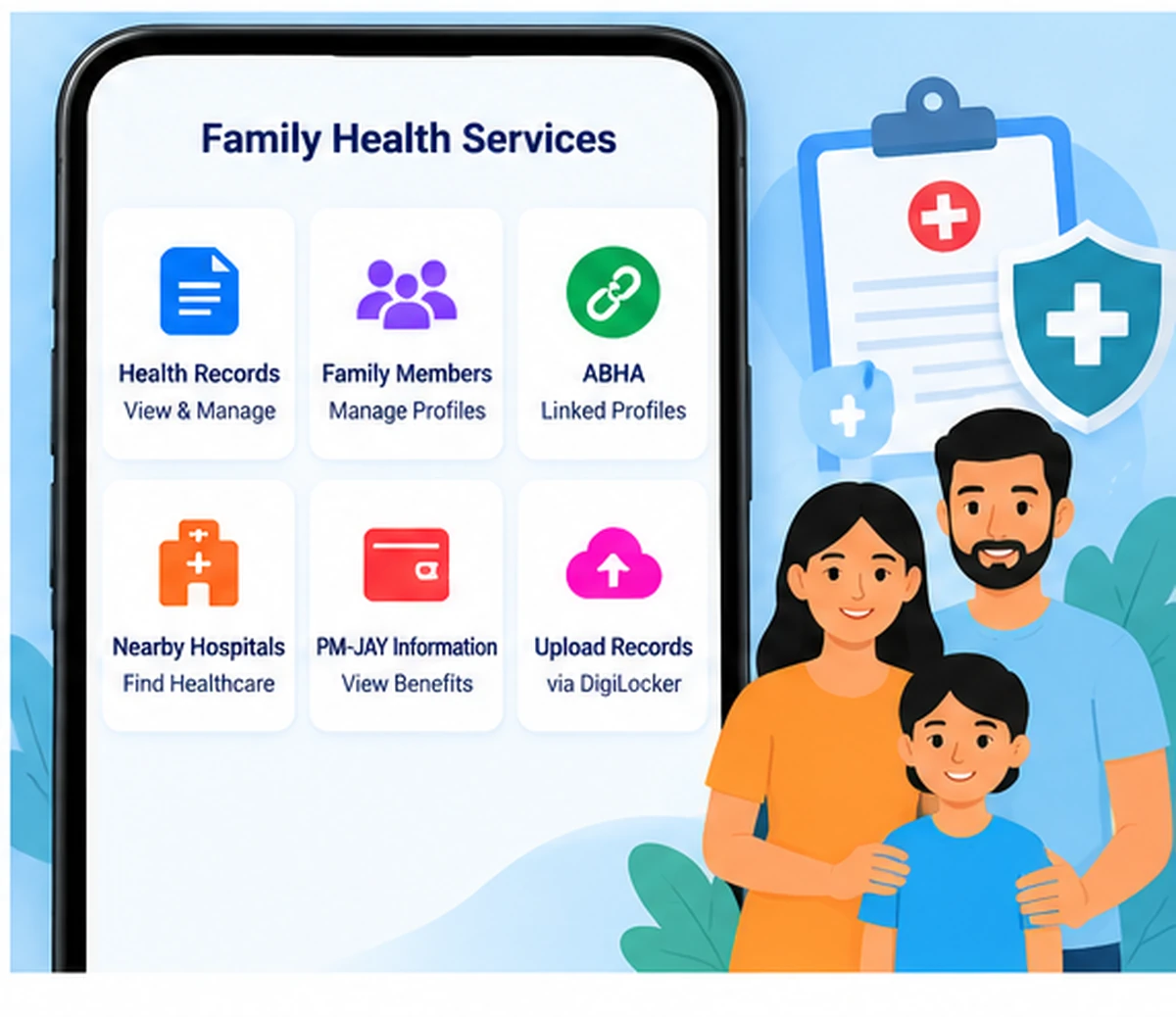
Aarogya Setu 2.0 combines several digital-health services in one app.
Depending on the family member and available integrations, you may find services related to:
- Family profiles
- Health records
- ABHA-linked services
- DigiLocker-supported health documents
- Healthcare facilities
- PM-JAY-related information
- Treatment information
- Family health management
- Consent-based health-record sharing
For example, you may use one family profile to organise supported health information for an elderly parent.
However, simply adding that parent does not automatically pull every hospital record into the app. The healthcare facility must support the relevant digital-health system, and the record must also link correctly.
How to Add Family Member in Aarogya Setu 2.0
The process is straightforward in most cases.
Step 1: Install or Update Aarogya Setu 2.0
First, make sure you use the latest official version of Aarogya Setu.
Android users can use:
https://play.google.com/store/apps/details?id=nic.goi.aarogyasetu
iPhone users can use:
https://apps.apple.com/in/app/aarogyasetu-2-0/id1505825357
Updating the app is important because newer Family Management features may not appear in older versions.
Also, avoid unofficial APK websites. Instead, use the official Play Store or App Store listing.
Step 2: Login to Your Aarogya Setu Account
Next, open Aarogya Setu and complete the normal login process.
If you are using the app for the first time, finish the initial account setup first.
Then, open the main dashboard.
Use your own account details and avoid logging in through someone else’s profile.
Step 3: Open Family Management
Now, look for a section such as:
- Family
- Family Management
- Family Health
- Manage Family
The exact wording may vary between versions.
Therefore, if you do not see the same label shown in an older screenshot, check the Profile, Health or Services areas as well.
Step 4: Select Add Family Member
After opening Family Management, select the option to add a family member.
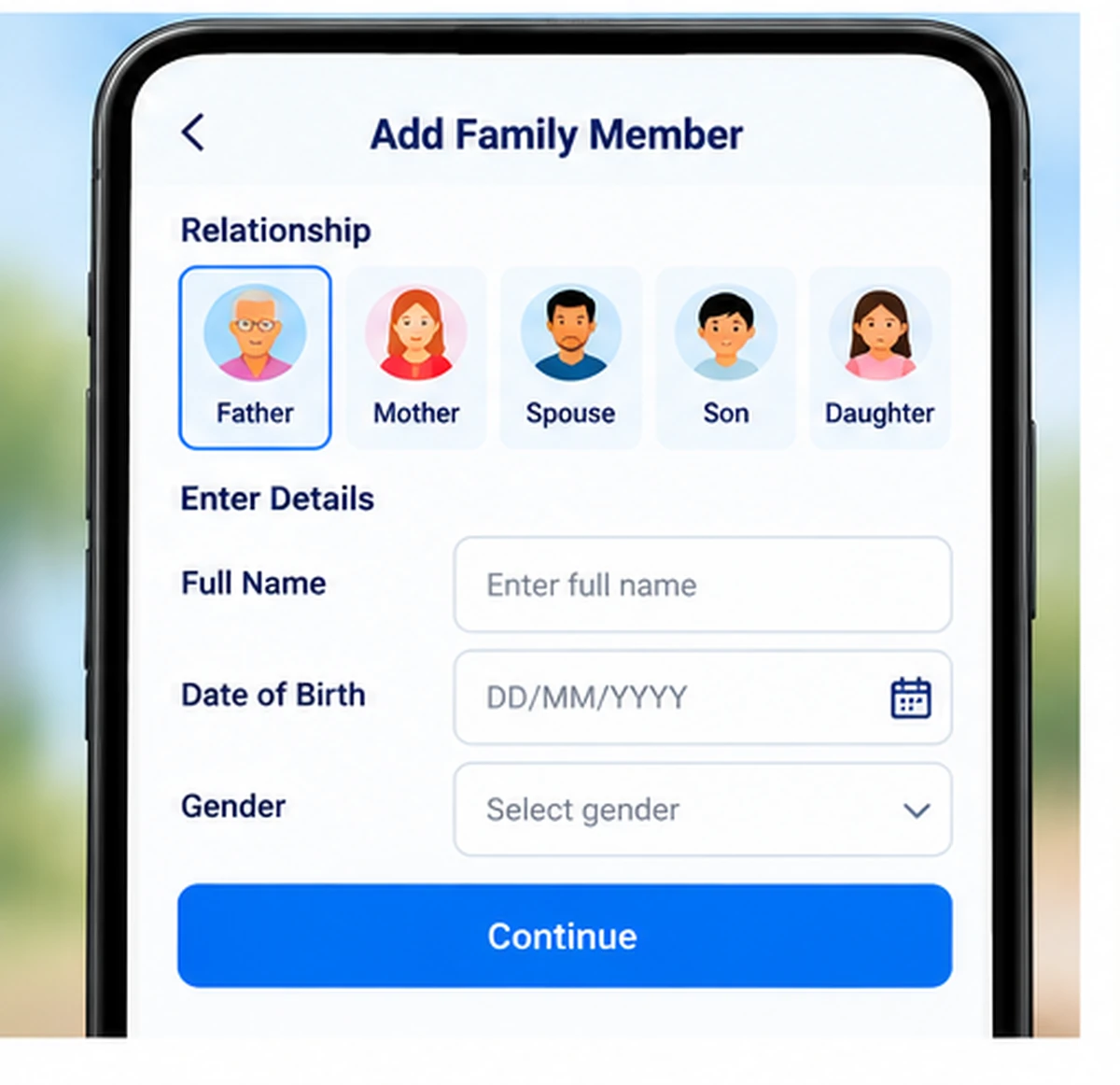
The app may then ask which type of family member you want to add.
For example, you may see relationship options such as father, mother, spouse, son or daughter.
Step 5: Choose the Correct Relationship
Select the relationship that accurately describes the person.
Possible options may include:
- Father
- Mother
- Spouse
- Son
- Daughter
- Other supported relationship
Always choose the correct option.
Otherwise, inaccurate family-profile information may create problems later when you use health services or link records.
Step 6: Enter Family Member Details
Next, enter the information that the app requests.
Depending on the current app version, you may need details such as:
- Full name
- Date of birth
- Gender
- Other identity information
Check every entry carefully before moving forward.
In addition, only add genuine family members. Do not create fictional or duplicate profiles.
Step 7: Complete Required Verification
Some family services may ask for additional verification.
For example, the app may require:
- ABHA linkage
- Identity verification
- Mobile verification
- Consent
- Existing health-profile verification
Follow only the instructions shown inside the official Aarogya Setu application.
Never use an unofficial website that promises to bypass identity verification.
Step 8: Review the Details
Before confirming the profile, review everything once again.
Check:
- Name
- Relationship
- Date of birth
- Gender
- ABHA details, if shown
If you notice an error, correct it before submission where the app allows.
Step 9: Confirm the Family Member
Finally, confirm the family-member addition.
After successful addition, Aarogya Setu should show the person inside the Family Management section.
You can then select that family profile when using supported health services.
Can I Add Parents in Aarogya Setu 2.0?
Yes. Aarogya Setu 2.0 Family Management supports family profiles such as parents.
This can help users manage supported digital-health services for elderly parents who may not use smartphones regularly.
For example, you may organise supported health records or healthcare information from your main account.
However, some services may still require your parent’s individual identity verification or consent.
Therefore, adding a parent does not give unrestricted access to all of their personal medical information.
Can I Add My Spouse?
Yes. You can use Family Management for a spouse where the current app supports the relationship.
First, select the correct relationship. Then, enter accurate details and complete any required verification.
Also, if your spouse already has an ABHA, use the existing ABHA where the app provides that option.
Do not create unnecessary duplicate health identities.
Can I Add Children?
Yes. Family Management also supports children.
This feature can be especially useful for parents because young children may not have their own smartphones or app logins.
However, verification requirements can vary depending on the child’s age, ABHA availability and the specific service.
Therefore, follow the current instructions inside Aarogya Setu rather than relying on old screenshots.
Does Every Family Member Need a Separate Login?
Not necessarily.
One of the main benefits of Family Management is that it allows users to manage supported family profiles from one account.
Therefore, parents, spouse and children do not always need separate app logins just for family management.
However, some services may still require individual verification.
For example, accessing or sharing a specific health record may require consent connected with that person.
Does Every Family Member Need an ABHA?
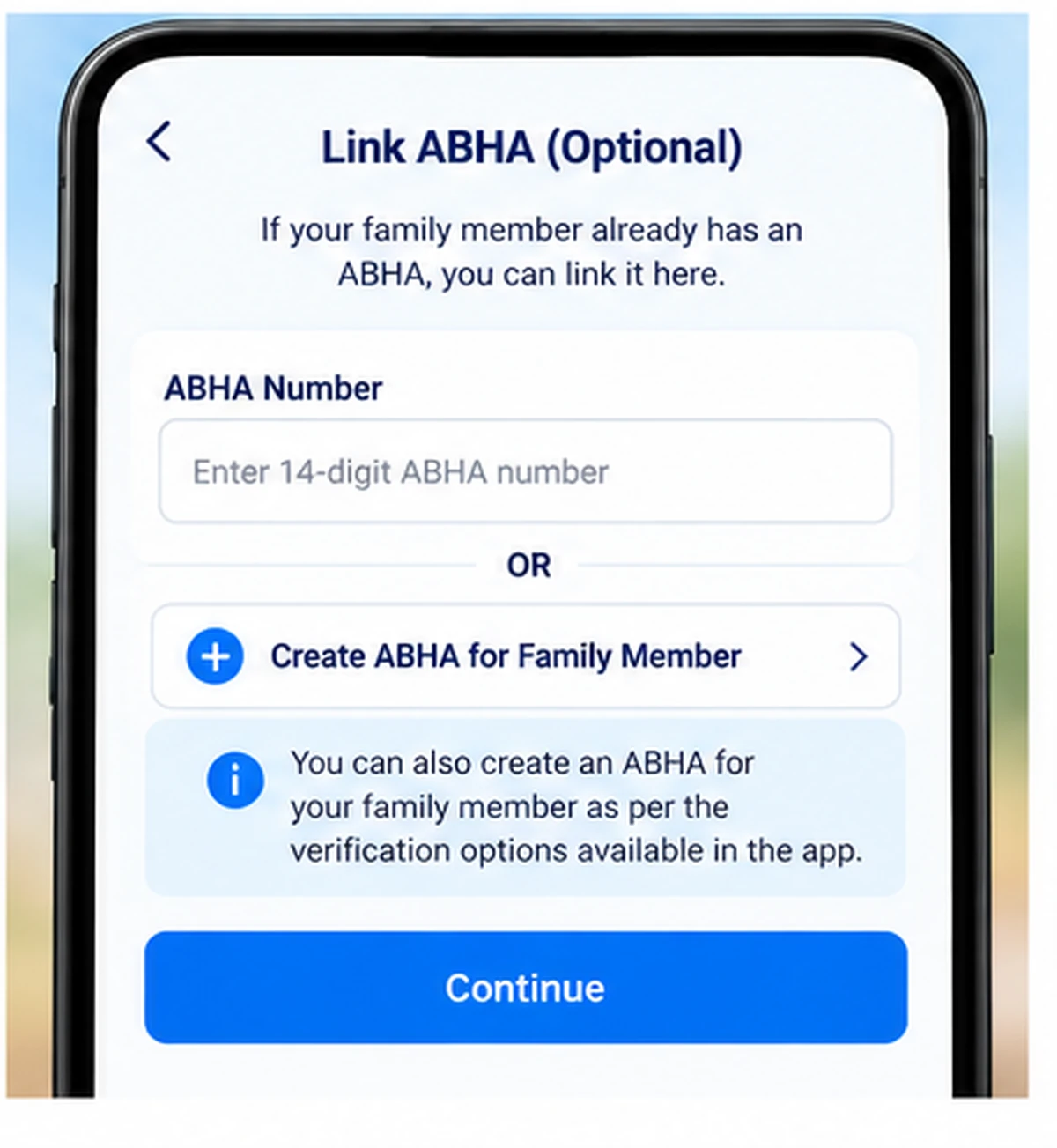
Not every family-management action necessarily requires ABHA.
However, some services in the ABDM ecosystem may use or require an individual ABHA.
Therefore, if a family member already has an ABHA, use that existing health identity where appropriate.
If you need information about creating ABHA, see:
Aarogya Setu 2.0 ABHA Creation:
https://wayalert.in/aarogya-setu-2-0-abha-creation/
What Is ABHA?
ABHA stands for Ayushman Bharat Health Account.
An ABHA Number is a 14-digit digital-health identifier used within the Ayushman Bharat Digital Mission ecosystem.
It can connect users with participating health services and digital-health records.
However, ABHA is not the same as:
- Aadhaar
- Ayushman Card
- PM-JAY eligibility
- Mobile number
- Hospital registration number
Therefore, adding a family member or creating ABHA does not automatically provide PM-JAY benefits.
Can Family Health Records Be Managed in Aarogya Setu?
Aarogya Setu 2.0 supports personal and family health management.
In addition, the app can work with supported digital-health records and DigiLocker-based document storage.
However, the records available for each family member depend on several factors.
For example:
- The hospital must create or provide a digital record.
- The record may need ABDM linkage.
- The user may need to provide consent.
- The health identity must match correctly.
Therefore, do not expect every old medical document to appear automatically.
Can I View a Family Member’s Hospital Records?
You may be able to access supported records when the healthcare provider participates in the relevant digital-health system and the required linkage and consent exist.
However, Family Management itself does not provide unrestricted access to someone else’s medical history.
Instead, ABDM health-record workflows use identity and consent controls.
As a result, adding a family member and accessing a medical record are two separate steps.
Family Member Health Records Not Showing
If the family member appears in the app but health records do not, check the following possibilities.
The Hospital Did Not Create a Digital Record
Some older or offline records may exist only as paper documents.
Therefore, they may not automatically appear in Aarogya Setu.
The Healthcare Facility Does Not Support the Required Integration
A hospital or laboratory may not yet provide the record through the relevant digital-health network.
The Record Is Not Linked Correctly
Sometimes the digital record exists, but the system has not connected it with the correct health identity.
Consent Is Pending
Some record-sharing processes require user approval.
Therefore, check whether Aarogya Setu shows a pending consent or linking request.
You Selected the Wrong Family Profile
Finally, confirm that you opened the correct family member before searching for records.
Add Family Member Option Not Showing
If you cannot find the Family Management or Add Family Member option, try these steps.
Update Aarogya Setu
First, check the Play Store or App Store for an update.
New features may not appear in an older app version.
Restart the App
Next, close Aarogya Setu completely and reopen it.
This can refresh the dashboard.
Check Other Sections
The interface can change.
Therefore, check:
- Profile
- Family
- Health
- Services
if the option is not on the home screen.
Check Internet Connection
A weak connection may prevent some sections from loading.
Switch between Wi-Fi and mobile data if necessary.
Restart Your Phone
Finally, restart the phone if the problem continues.
Unable to Add Family Member
If Aarogya Setu does not let you add a family member, first check the information you entered.
Common reasons can include:
- Incorrect personal details
- An existing family profile
- Verification failure
- Network problems
- Temporary app or server issues
If the person already appears in Family Management, do not add another profile.
Instead, open the existing profile and check its details.
Also, if verification fails repeatedly, wait for some time before trying again.
Duplicate Family Member Showing
If the same person appears twice, avoid creating another profile.
First, check which profile contains the correct identity or ABHA information.
Next, look for the current profile-management options.
However, do not remove a profile until you understand whether important records or services connect to it.
In addition, removing a family profile from Aarogya Setu does not necessarily delete information stored independently by hospitals, ABDM systems or other healthcare services.
Can I Add a Family Member Without a Smartphone?
Family Management can help when a family member does not use a smartphone regularly.
For example, an adult child may manage supported health information for an elderly parent.
However, some services may still require:
- Identity details
- ABHA
- Consent
- Other verification
Therefore, Family Management reduces the need for separate logins, but it does not remove all verification requirements.
Can I Manage PM-JAY Information for Family Members?
Aarogya Setu 2.0 includes access to supported PM-JAY-related information.
Depending on available integrations, users may see information related to:
- PM-JAY empanelled hospitals
- Treatment details
- Applicable family-member benefits
- Other supported scheme information
However, adding a family member does not automatically make that person eligible for PM-JAY.
Eligibility depends on the scheme’s own rules and beneficiary records.
Family Management vs ABHA Creation
Family Management and ABHA Creation perform different jobs.
Family Management
This feature helps you organise supported profiles for family members such as parents, spouse and children.
ABHA Creation
ABHA Creation creates an individual digital-health identity for a person.
Therefore, a family member may appear in Family Management while a specific digital-health service separately asks for that person’s ABHA.
Family Management vs Ayushman Card
These are also different services.
Family Management helps organise supported family health profiles.
On the other hand, an Ayushman Card relates to PM-JAY eligibility and benefits for eligible beneficiaries.
Therefore, do not treat adding a family member in Aarogya Setu as an Ayushman Card application.
Family Health Data and Privacy
Health information is sensitive, so use Family Management carefully.
For better privacy:
- Add only genuine family members.
- Protect your phone with a screen lock.
- Never share OTPs.
- Keep Aadhaar and ABHA information private.
- Review consent requests before approving them.
- Do not upload health records to unknown websites.
- Avoid unofficial Aarogya Setu APK files.
- Never allow unknown callers to remotely control your phone.
In addition, avoid publicly sharing screenshots that contain family medical or identity information.
Is Aarogya Setu 2.0 Family Management Free?
You can install the official Aarogya Setu application without paying an unknown third-party website.
Likewise, you should not pay someone simply to add a family member to your app.
However, healthcare services that you later use may have their own charges.
Therefore, always distinguish between using the app and paying for an actual medical service.
Official Aarogya Setu Links
Android:
https://play.google.com/store/apps/details?id=nic.goi.aarogyasetu
iPhone:
https://apps.apple.com/in/app/aarogyasetu-2-0/id1505825357
Always use official app-store listings.
Avoid modified APK files from unknown websites.
Aarogya Setu 2.0 Family Member Add FAQs
Can I add family members in Aarogya Setu 2.0?
Yes. Family Management allows users to manage supported family profiles from one account.
Which family members can I add?
The feature includes family relationships such as parents, spouse and children.
Can I add my parents?
Yes. Family Management can help users manage supported digital-health services for parents.
Can I add children?
Yes. Parents can manage supported child profiles through the family feature.
Does every family member need a separate login?
Not always. Family Management reduces the need for separate app logins. However, individual services may still require identity verification or consent.
Does every family member need ABHA?
Some digital-health services may require an individual ABHA. Therefore, follow the requirement shown for the service you want to use.
Can I view a family member’s health records?
You may access supported records when the correct health identity, record linkage and consent requirements are satisfied.
Why is Add Family Member not showing?
First, update the app. Next, restart it and check the current Family, Profile, Health or Services sections.
Can I add a family member without a smartphone?
Family Management can help in such cases. However, some services may still require the family member’s identity or consent.
Does adding a family member provide PM-JAY eligibility?
No. PM-JAY eligibility follows separate scheme rules.
Does WayAlert add family members for users?
No. WayAlert.in provides informational guides only. It cannot access Aarogya Setu accounts, ABHA profiles or private health records.
Final Words
Aarogya Setu 2.0 Family Member Add can make digital-health management easier for households because users can organise supported profiles for parents, spouse and children from one account.
Moreover, the feature may help families manage available health records and related digital-health services more conveniently.
However, Family Management does not remove identity, ABHA, consent or scheme-eligibility requirements. Therefore, always follow the instructions inside the latest official Aarogya Setu app and protect your family’s health information carefully.