
To create a NotebookLM Telugu Audio Overview, add your notes or PDF to a notebook, open the Audio Overview customization panel, select తెలుగు under Choose language, and generate the audio. Once it is ready, open the audio player’s three-dot menu and select Download.
This guide uses screenshots from our desktop walkthrough. We added English study notes about the water cycle, selected Telugu and generated a playable Telugu overview lasting 6 minutes and 41 seconds. That duration belongs to this example; your audio may be shorter or longer.
Name update: Google now labels the service Gemini Notebook, formerly NotebookLM. Our screenshots show the newer interface. This guide uses NotebookLM because readers may still know it by that name.
What you need before starting
Have your Google account, an internet connection and the material you want to understand ready. For your first attempt, use a short document about one topic. It makes the resulting explanation easier to check.
You can start with your own English notes. You do not need to translate them into Telugu first. In our example, the source was English text and the selected audio language was Telugu.
No PDF available? Use the Copied text option to add notes directly. Only upload material you are allowed to use, and leave out passwords, account numbers and confidential personal information.
How to create a Telugu Audio Overview in NotebookLM
1. Open a notebook and add your material
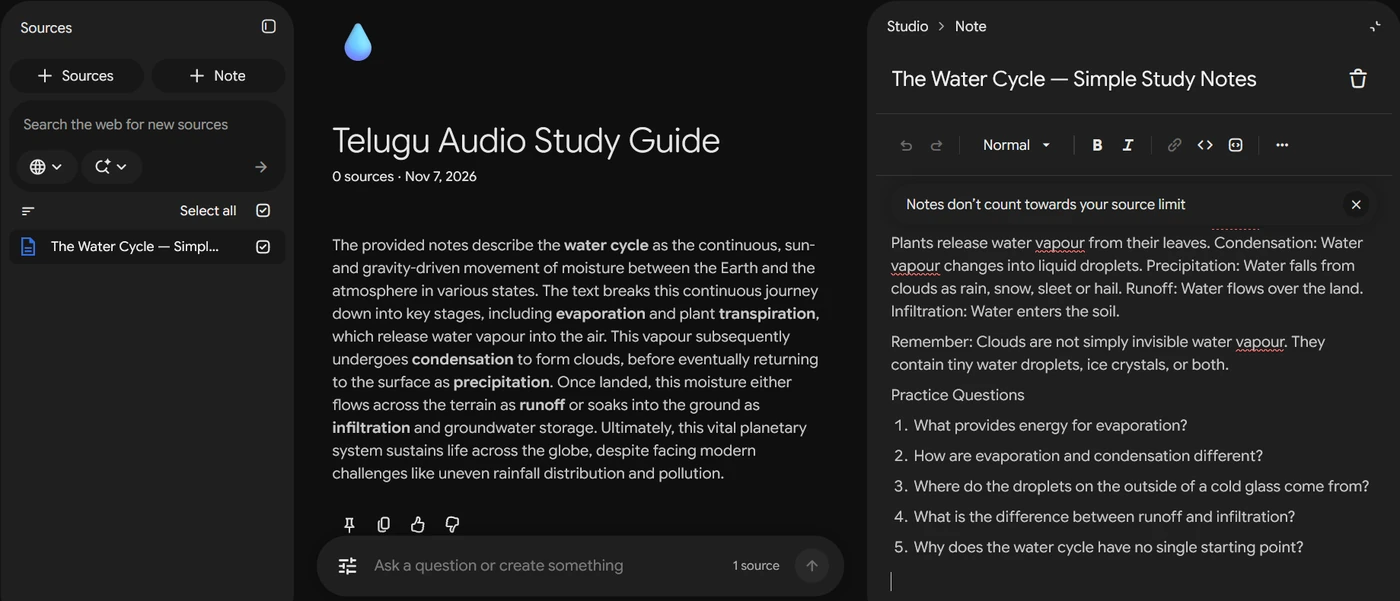
Open Google’s notebook service, sign in and create a notebook. Give it a clear name, such as “Telugu Audio Study Guide.”
Select Add sources. For a PDF, choose Upload files. For written notes, choose Copied text, paste your content and complete the on-screen action to add it.
A common mistake: Do not paste your entire notes into the Web / Fast Research search box when your goal is to add that text. Use Copied text instead.
Check that your material appears in the left panel and is selected. Open it briefly to confirm the content is complete. If its editor is open on the right, click Studio at the top of that panel to return to the creation tools.
2. Open Audio Overview customization
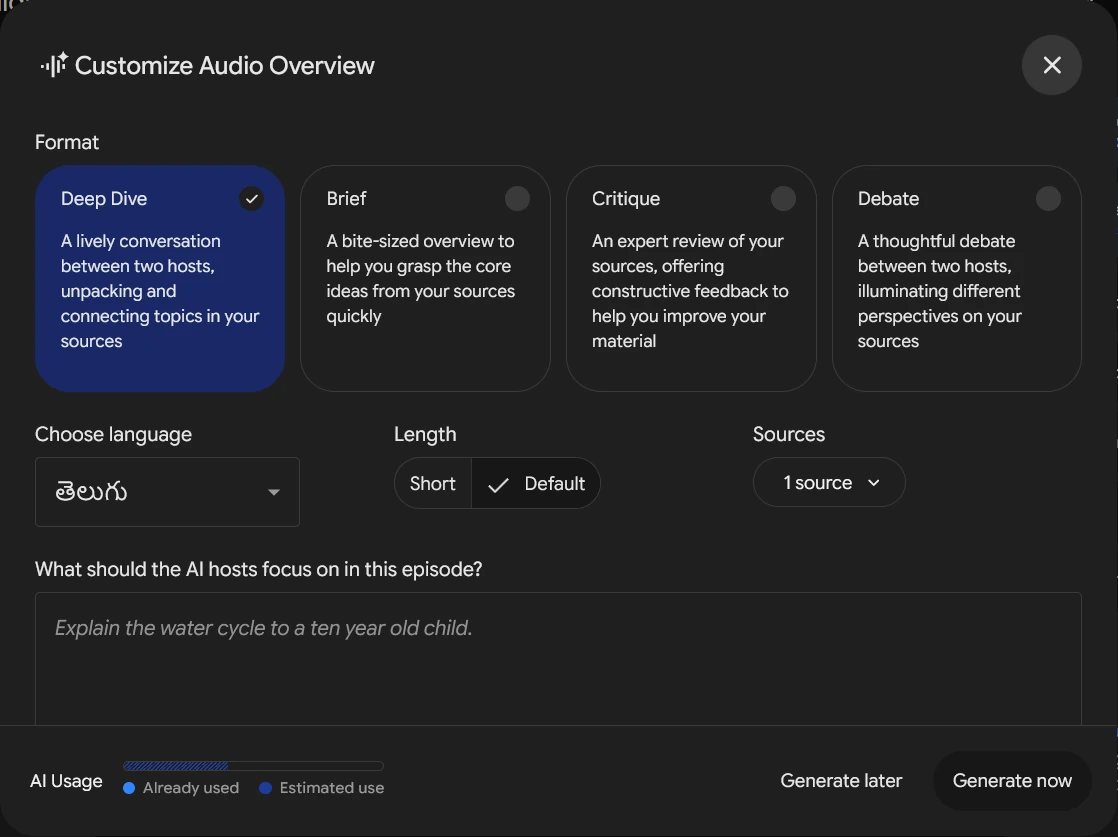
In the Studio panel, find Audio Overview. Use its pencil or customization control to open Customize Audio Overview before generating.
For a conversational explanation, choose Deep Dive. That is the format used in our example. Check the Sources selector to make sure the intended notes are included.
3. Select Telugu as the audio language
Open Choose language and select తెలుగు. Check this setting even if your notebook title already contains the word Telugu.
Our screen displayed Short and Default length choices, and we used Default. Available controls can differ between versions and languages, so follow the options shown in your account rather than expecting an exact audio duration.
4. Add an optional prompt and generate
The box labelled “What should the AI hosts focus on in this episode?” lets you describe the explanation you want. For our water cycle example, this is a useful prompt:
Explain the water cycle in simple, natural Telugu for a beginner. Use only the selected study notes. Keep key English science terms such as evaporation, condensation and precipitation, and explain their meanings in Telugu. Include the everyday examples from the notes. End with a short recap and three revision questions. Do not add facts that are not in the source.
For your own document, replace “the water cycle” and the example terms with your subject. A prompt guides the output, but it does not guarantee that every instruction will be followed.
Select Generate now. While “Generating Audio Overview…” is displayed, allow the existing request to finish. You do not need to repeatedly press Generate. The notification invitation is optional.
5. Listen and check the result
When the player appears, press Play. Check that the explanation is in Telugu and covers your selected material. In our walkthrough, playback successfully produced Telugu audio from the English notes.
Before using the audio for revision, compare important definitions, names and numbers with the original document. An Audio Overview is an AI-generated summary, not a word-for-word reading of every page.
How to download the Telugu audio
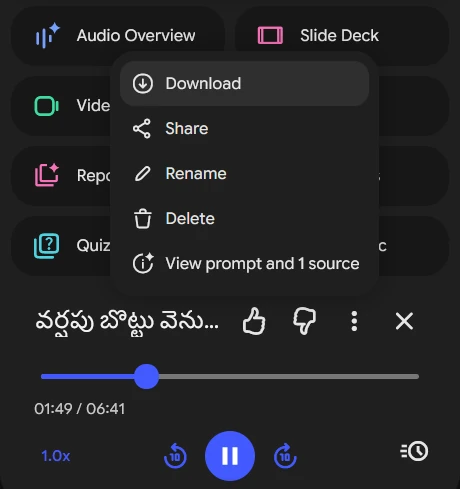
On the desktop website, open the completed audio and click the three-dot menu beside its title. Select Download, then check your browser’s download list or your chosen downloads folder.
Use the app’s own Download option. You do not need a separate browser download extension for this step. After saving, open the file once to check it plays correctly.
Can you create and listen on mobile?
Google’s mobile app supports Audio Overview creation and playback. In Studio, look for the customization pencil to choose the language and adjust the available settings.
Mobile downloads may be saved for offline listening inside the app, which is different from exporting an audio file into your phone’s file manager. If you need a separate file, use the desktop website’s Download option shown above.
If your app looks different, check Google’s mobile app help. The screenshots in this article show the desktop browser version.
Common problems and what to check
The audio is in English: Open the customization panel and check that Choose language is set to తెలుగు. Selecting a language for a new generation does not translate an audio file you already created. Generate a new version after correcting the setting.
The wrong topic appears: Check which sources are selected. For a focused summary, use only the relevant notes. Read the imported content to make sure you added the intended text.
Generation is taking longer: Check the status of the existing request before starting another. If it reports an error, read that message, check your connection and confirm that the selected material opens correctly.
A usage limit appears: Follow the AI Usage message in your account. Access and limits can change, so a fixed daily allowance from an older tutorial may not apply. See Google’s current usage-limit guidance.
You cannot find Download: Open the completed audio’s own three-dot menu, not the menu for the entire notebook. If you are using the mobile app, check whether the option is for in-app offline listening.
Technical words sound unclear: Try a more focused source and ask for important English terms to be explained in simple Telugu. Always check the result; a custom prompt cannot guarantee pronunciation or factual accuracy.
Frequently asked questions
Can English notes produce a Telugu Audio Overview?
Yes. Our walkthrough used English water cycle notes and generated Telugu audio after selecting తెలుగు in the customization panel.
Do I need a paid subscription?
Google provides standard access without a paid plan, subject to usage limits and availability. Check your account’s current allowance before generating. Paid plans offer higher limits.
Will it read my entire PDF in Telugu?
An Audio Overview summarizes and explains the selected material. It should not be treated as a complete translation or an audiobook containing every sentence of your PDF.
Will my overview also last 6 minutes and 41 seconds?
No. That is the duration of our example. Your source material, selected format and generation settings can produce a different result.
Where can I check Google’s official instructions?
Visit Google’s Audio Overview help page for supported languages and feature guidance.
Related account help: If you separately claimed a Google AI offer through Jio and the benefit is not appearing, see our Jio Gemini offer active but not working guide. Claiming that offer is not a required step in this tutorial.