
Forgot your KVB Net Banking password? Karur Vysya Bank customers can use the Forgot / Reset Password option on the official Internet Banking portal at https://inb.kvb.bank.in/.
Online password recovery is available to eligible customers who have already configured their Internet Banking security questions. The bank may also require Transaction PIN (TPIN) and OTP verification or the applicable RSA passcode.
If online recovery is unavailable, customers can request help through KVB customer support, their registered email address, or their home branch.
This guide explains how to reset your KVB Internet Banking login password, unlock a locked User ID, reset your TPIN, and resolve common account-access problems using official bank instructions.
KVB Net Banking Password Reset – Quick Overview
| Particular | Details |
|---|---|
| Bank | Karur Vysya Bank (KVB) |
| Service | Internet Banking Password Recovery |
| Official Internet Banking Portal | https://inb.kvb.bank.in/ |
| Secure Login Gateway | https://www.kvb.bank.in/ilogin/ |
| Online Recovery Option | Forgot / Reset Password |
| Main Online Requirement | Previously configured security questions |
| Additional Verification | TPIN with OTP or applicable RSA passcode |
| Alternative Recovery | Helpdesk, registered email or home branch |
| Internet Banking Helpline | 1860 258 1916 |
| Official Email | customersupport@kvb.bank.in |
| User ID Unlock | Online, SMS, registered email or IVR |
| TPIN Recovery | Separate Transaction PIN reset procedure |
Important: WayAlert.in is an independent informational website. We do not reset banking passwords or collect User IDs, PINs, OTPs, account credentials, or security-question answers.
Official KVB Net Banking Password Reset Website
Karur Vysya Bank has announced a new Internet Banking domain.
Current official login portal:
Customers can also visit the official login gateway:
https://www.kvb.bank.in/ilogin
Some older guides still link to inb.kvbin.com and other legacy banking addresses. Avoid relying on an old bookmark when the bank has published a current official login URL.
Before starting password recovery:
- Open the official KVB website or login portal.
- Check the domain carefully.
- Avoid links received from unknown callers or messages.
- Do not enter passwords or OTPs on unofficial websites.
- Use the bank’s current recovery instructions.
A genuine-looking banking logo alone does not prove that a login page is authentic.
How to Reset KVB Net Banking Password Online
KVB’s official Internet Banking FAQ confirms an online login-password reset facility for customers who have previously configured their security questions and answers.
Step 1: Open the Official Net Banking Portal
Visit:
Use the current official Internet Banking login service.
Step 2: Select Forgot / Reset Password
On the customer login page, locate the Forgot / Reset Password option.
The wording or position of this option may change if the bank updates its login interface.
Step 3: Enter the Required Customer Identifier
Follow the instructions displayed on the password recovery page.
KVB’s published Internet Banking overview identifies the Customer ID as part of the password reset process.
Enter the identifier requested by the official application.
Do not assume that an account number, User ID, and Customer ID are interchangeable.
Step 4: Answer Your Security Question
Provide the answer to the security question previously configured for your Internet Banking account.
The online reset facility depends on an existing security-question setup.
If you never configured security questions, this method may not be available.
Step 5: Complete the Required Authentication
KVB’s official recovery guidance describes verification using:
- Transaction PIN (TPIN) with OTP, or
- An applicable RSA passcode
Follow the method requested by the bank’s system for your account.
Never share an OTP, TPIN, password or RSA code with anyone.
Step 6: Set Your New Login Password
If the bank successfully verifies your identity, follow the displayed instructions to create a new Internet Banking login password.
Use a strong, unique password that meets the requirements shown by the bank.
Do not reuse a password that you already use for email, social media or another financial account.
Step 7: Return to the Official Login Page
After the reset is confirmed, return to the official Internet Banking login page.
Sign in using your updated credentials and complete any required security verification.
If the password is not accepted, follow the bank’s error instructions rather than repeatedly guessing.
Note: Online recovery is not guaranteed for every account. Security-question eligibility and the actual verification method depend on the bank’s current system and your account setup.
KVB Password Reset Without Security Questions
If you have not previously configured your Internet Banking security questions, KVB states that the online security-question recovery option is unavailable.
You should use an authorised bank-assisted recovery method instead.
Method 1: Contact KVB Internet Banking Support
Call the bank’s official helpdesk:
1860 258 1916
Local call charges apply.
Ask for assistance with your Internet Banking login password.
The bank will explain the required identity verification and approved recovery procedure.
According to KVB’s published FAQ, certain bank-assisted password-reset requests involve sending replacement credentials to the customer’s registered communication address by registered post, within the bank’s stated processing period of five working days.
Confirm the current processing and delivery arrangements with the bank.
Method 2: Request Recovery from Your Registered Email
KVB lists the following official support address:
Send your recovery request from the email address registered with the bank.
Explain that you cannot access Internet Banking and need the authorised login-password reset process.
Do not include your existing password, TPIN, OTP, debit-card PIN, complete card details or security-question answers.
The bank may request additional identity verification through its approved channels.
Method 3: Visit Your Home Branch
If online or remote recovery is unavailable, visit the KVB branch where you maintain your account.
Request the official Internet Banking password-reset procedure.
Carry the identity documents requested by the bank and complete the applicable forms.
KVB’s FAQ describes registered-post delivery arrangements for certain branch-assisted requests. Confirm current procedures and timelines directly with your branch.
How to Set KVB Internet Banking Security Questions
Security questions are important because KVB uses them for eligible online password recovery and other Internet Banking service requests.
KVB’s official FAQ provides a process for setting or changing these questions after login.
Steps to Configure Security Questions
- Log in to your KVB Internet Banking account.
- Open Profile.
- Select Set/Change Security questions and answers.
- Choose three different security questions.
- Enter an answer for each question.
- Select Submit.
- Complete the authentication requested by the bank, using TPIN and OTP or the applicable RSA credentials.
- Confirm that the changes have been saved.
Choose answers you can remember but that are difficult for other people to discover.
Do not share your security-question answers by phone, email, chat or social media.
Important: This process requires successful access to Internet Banking. If you have already forgotten your password and never configured security questions, contact the bank for recovery instead.
How to Unlock a Locked KVB Net Banking User ID
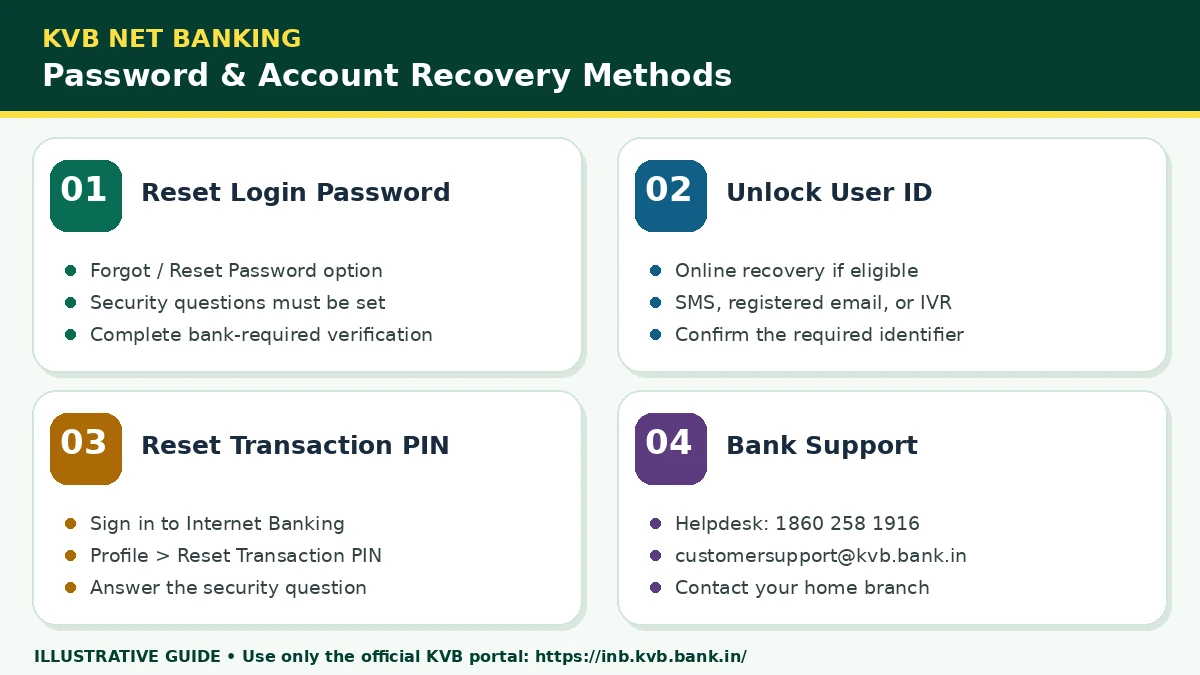
A locked Internet Banking User ID is different from a forgotten login password.
KVB provides several methods for unlocking eligible accounts.
Option 1: Unlock User ID Online
Customers who have previously set security questions can use the official online unlock facility.
- Open the official Internet Banking portal.
- Locate Unlock User ID.
- Follow the customer-identification instructions.
- Answer the previously configured security question.
- Complete the verification requested by the portal.
- Check whether your User ID has been unlocked.
KVB’s Internet Banking overview describes an additional TPIN and OTP or RSA-passcode verification step for this recovery method.
Option 2: Unlock Through SMS
KVB provides an SMS-based User ID unlock facility.
Its Internet Banking overview publishes the command:
KVBNET <USERID> UNLOCK
The bank lists the following SMS destinations:
- +91 9643739643
- +91 9643999643
- 56161
Send an eligible service-request SMS only from the mobile number registered with the bank. Standard SMS charges may apply.
Identifier clarification: KVB’s Internet Banking Overview uses the term User ID in its SMS command, while the FAQ describes the identifier as Customer ID. Because these descriptions differ, confirm which identifier is required for your account using the bank’s current instructions or customer support before sending the SMS.
Option 3: Request Unlock by Registered Email
KVB also provides an email-based unlock facility.
Contact:
Use your email address registered with the bank.
KVB’s published FAQ states that eligible email unlock requests are normally processed within one working day, followed by confirmation to the registered email address.
Actual handling depends on the bank’s verification and service availability.
Do not send confidential banking credentials by email.
Option 4: Use KVB IVR Support
KVB’s Internet Banking FAQ describes an IVR-based unlock process.
Call:
1860 258 1916
Follow the current telephone-banking menu for Internet Banking assistance.
The IVR may require your Customer ID and telephone-banking verification credentials.
Do not confuse an IVR PIN with the Internet Banking TPIN.
If you cannot complete the automated process, contact the bank’s support team.
How to Reset KVB Internet Banking TPIN
The Transaction PIN (TPIN) is different from the login password.
KVB uses the TPIN as part of the authorisation process for eligible financial transactions and security-related operations.
TPIN Reset Steps
KVB’s Internet Banking overview describes this self-service method:
- Log in to the official KVB Internet Banking portal.
- Open Profile.
- Select Reset Transaction PIN.
- Answer the security question requested by the bank.
- Follow any additional authentication instructions.
- Set a new Transaction PIN.
- Complete the reset procedure.
Online TPIN reset depends on your account eligibility and previously configured security questions.
What If You Cannot Login or Reset TPIN?
If you cannot access Internet Banking or your account is not eligible for online TPIN recovery, contact KVB through its official helpline, registered email or home branch.
Ask specifically for Transaction PIN recovery, not login-password recovery.
This distinction is important because the two credentials serve different purposes and their reset procedures are not identical.
Do not assume that resetting your login password also changes your TPIN.
KVB Login Password vs TPIN vs IVR PIN
Different KVB banking channels use different security credentials.
| Credential | Main Purpose |
|---|---|
| Internet Banking Login Password | Access the Internet Banking account |
| Transaction PIN (TPIN) | Authorise eligible Internet Banking transactions |
| OTP | Complete an applicable one-time verification |
| RSA Passcode | Provide applicable RSA-based authentication |
| IVR PIN | Authenticate through eligible telephone-banking services |
| Mobile Banking MPIN | Used in the relevant mobile banking service |
Always use the credential requested by the specific official banking service.
Never provide these credentials to someone who contacts you unexpectedly.
Common KVB Password Reset Problems and Solutions
| Problem | Recommended Action |
|---|---|
| Old Net Banking link | Use https://inb.kvb.bank.in/ |
| Forgot password option unavailable | Check security-question eligibility |
| Security questions never configured | Use bank-assisted recovery |
| Customer ID not recognised | Confirm the required identifier with KVB |
| OTP not received | Check registered mobile details and bank instructions |
| TPIN forgotten | Use the separate TPIN reset procedure |
| User ID locked | Use online, SMS, email or IVR unlock methods |
| Registered email no longer accessible | Contact the bank for record verification |
| Session expired | Start a new session from the official portal |
| Website not loading | Check browser, connection and official URL |
Forgot / Reset Password Option Is Not Working
KVB states that security-question-based online password recovery requires previously configured security questions.
If this condition is not met, use an alternative authorised recovery method.
If security questions were configured but the service still fails, follow the portal’s error message or contact the helpdesk.
OTP Not Received
If the password reset process requests an OTP:
- Check whether the registered mobile number is active.
- Confirm that your phone can receive SMS messages.
- Follow any official resend instructions.
- Avoid unnecessary repeated attempts.
- Contact the bank if your registered contact information is outdated.
Never ask another person to receive or forward your banking OTP.
Customer ID or User ID Is Not Accepted
Confirm which identifier the official service requests.
A Customer ID and an Internet Banking User ID should not automatically be treated as the same identifier.
If you are unsure, seek clarification from the bank rather than repeatedly entering different numbers.
Account Still Locked After Password Reset
Changing a login password and unlocking a User ID are different services.
If the account remains locked, use the authorised User ID unlock process.
Do not attempt to bypass the bank’s security controls.
Registered Email or Mobile Number Has Changed
Account recovery can depend on contact information maintained by the bank.
If your registered email address or mobile number is no longer accessible, contact KVB for its current identity-verification and customer-record update procedure.
Do not use an unofficial intermediary to update banking information.
Important KVB Internet Banking Security Tips
Password recovery is a common opportunity for banking scams.
Fraudsters may send fake messages saying that your account has been locked or your KYC has expired.
They may then ask you to open a link, reveal an OTP or install an application.
Protect your banking access by following these steps:
- Use the official KVB website to start recovery.
- Never share your login password or TPIN.
- Never disclose an OTP or RSA passcode.
- Avoid customer-care numbers found in suspicious messages.
- Do not install remote-access applications at an unknown person’s request.
- Avoid public or shared computers for banking.
- Do not save banking credentials in a shared browser.
- Keep your device and browser updated.
- Review unusual transactions and bank alerts promptly.
- Report suspected unauthorised transactions through official channels.
For suspected unauthorised or suspicious transactions, KVB lists 1800 572 1916 as a toll-free reporting number.
India’s National Cyber Crime Helpline is 1930.
For additional guidance on independently checking bank contact information, read our Sanchar Saathi Trusted Contact Details guide.
Frequently Asked Questions
1. What is the official KVB Net Banking password reset website?
The current official KVB Internet Banking portal is https://inb.kvb.bank.in/. Use its Forgot / Reset Password facility for eligible online recovery.
2. Can I reset my KVB Net Banking password online?
Yes, if your account is eligible and you have already configured the required Internet Banking security questions. Complete the verification requested by the official portal.
3. How can I reset my KVB password without security questions?
KVB provides bank-assisted recovery through its helpdesk, registered email and home branch. Contact the bank to confirm the appropriate procedure.
4. Is OTP alone enough to reset the KVB Internet Banking password?
Do not assume so. KVB’s published online recovery process includes previously configured security questions and additional authentication such as TPIN with OTP or an applicable RSA passcode.
5. What is the KVB Net Banking password reset customer-care number?
The bank lists 1860 258 1916 for Internet Banking assistance. Local call charges apply.
6. What is KVB’s official customer-support email?
The official support email listed by KVB is customersupport@kvb.bank.in. For account-related requests, use the email address registered with the bank.
7. How can I unlock my KVB Internet Banking User ID?
Use the official Unlock User ID facility, registered-mobile SMS service, registered-email request or IVR support, depending on eligibility.
8. How can I reset my KVB Transaction PIN?
If eligible, log in to Internet Banking, open Profile, select Reset Transaction PIN, and complete the required security-question verification.
9. How long does a bank-assisted KVB password reset take?
KVB’s published FAQ describes registered-post delivery within five working days for certain approved recovery requests. Confirm the current timeline with the bank, as actual processing or delivery may vary.
10. Is the KVB Internet Banking password the same as the DLite MPIN?
No. Internet Banking and KVB DLite mobile banking use different authentication credentials and recovery procedures.
11. Can WayAlert reset my KVB password?
No. WayAlert.in is an independent information website. We cannot access bank systems or reset customer credentials.
Related KVB Banking Guides
For KVB Internet Banking login and registration information, read our Karur Vysya Bank Net Banking Guide.
You can also explore our Banking Services guides for other bank login and account-service information.
Always confirm financial-service instructions using the respective bank’s official website.
Official Sources and Disclaimer
Karur Vysya Bank – Official Website
KVB – Internet Banking Portal
KVB – Secure Login Gateway
https://www.kvb.bank.in/ilogin
KVB – Internet Banking FAQ
https://www.kvb.bank.in/faqs/faqs-internet-banking
KVB – Internet Banking Overview
https://www.kvb.bank.in/ways-to-bank/internet-banking/internet-banking-overview
KVB – Internet Banking Security Tips
https://www.kvb.bank.in/secure-banking/secure-banking-tips/secure-internet-banking
KVB – Customer Service
https://www.kvb.bank.in/customer-service
Disclaimer: WayAlert.in is an independent informational website and is not affiliated with Karur Vysya Bank. This guide is based on publicly available bank information and does not provide banking services or account recovery. The bank may update its website, authentication methods, support contacts and processing arrangements. Customers should follow current official KVB instructions and contact the bank directly for account-specific assistance.