
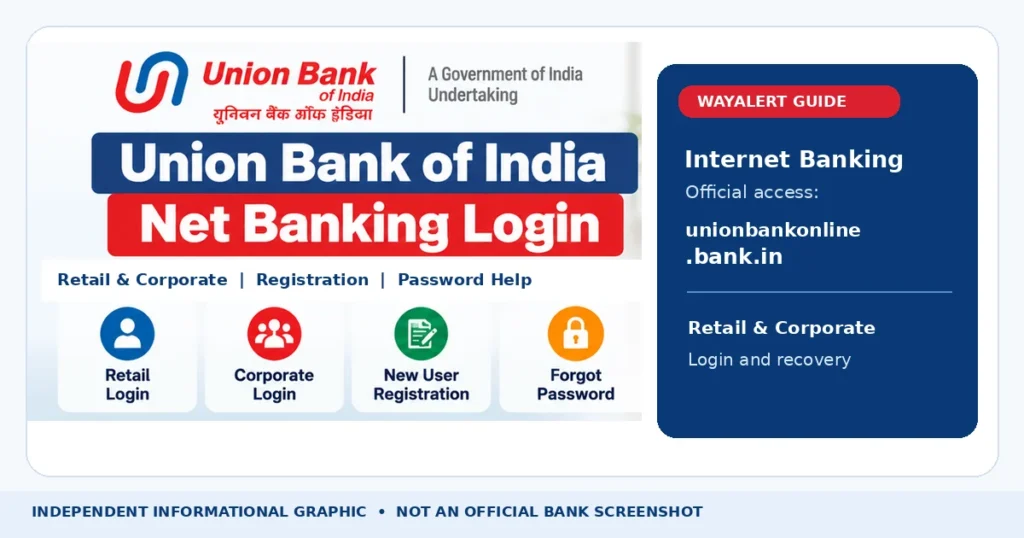
Union Bank of India Net Banking allows eligible customers to access banking services online through the official Internet Banking website at https://www.unionbankonline.bank.in/.
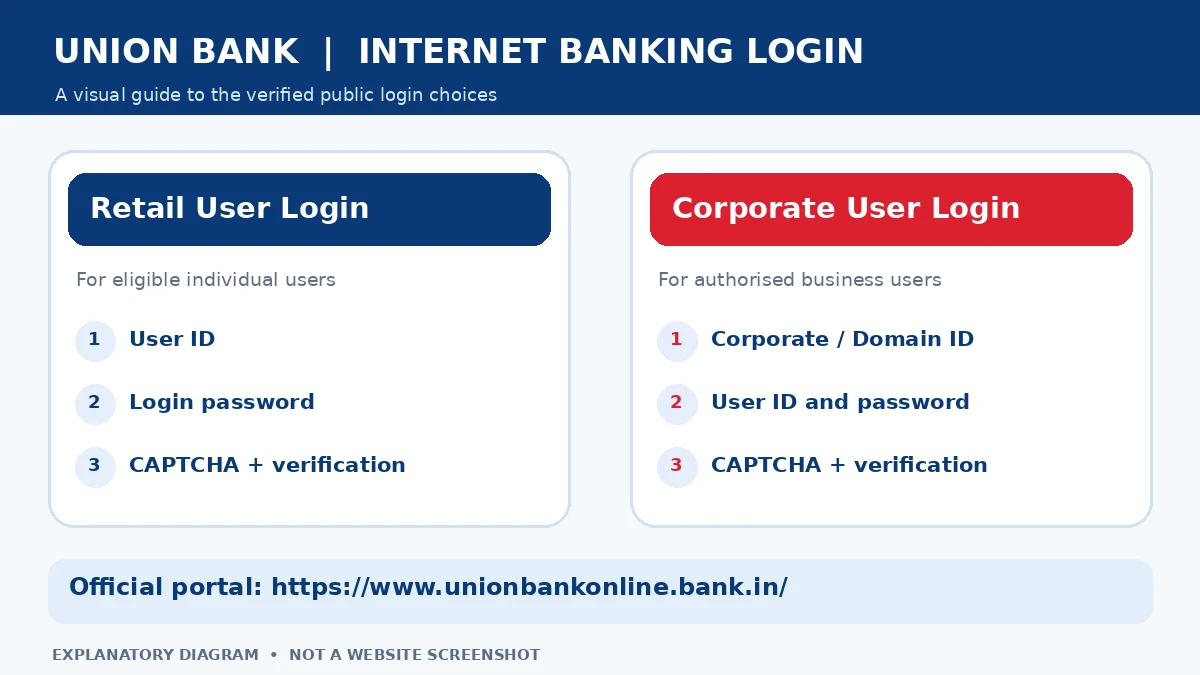
Customers can choose Retail User Login or Corporate User Login depending on their account type. Retail customers may also use the Self User Creation facility to register for Internet Banking, while corporate customers generally need branch-assisted onboarding.
If you have forgotten your User ID, login password, or transaction password, the bank provides separate recovery options.
This guide explains the current official login URL, retail and corporate login procedures, new-user registration, password recovery, transaction password creation, common errors, and Internet Banking security precautions.
Union Bank Net Banking – Quick Overview
| Particular | Details |
|---|---|
| Bank | Union Bank of India |
| Service | Internet Banking |
| Official Bank Website | https://www.unionbankofindia.bank.in/ |
| Official Net Banking Portal | https://www.unionbankonline.bank.in/ |
| Retail Login | Retail User Login |
| Corporate Login | Corporate User Login |
| New Retail Registration | Self User Creation |
| Password Recovery | Forgot/Create Password |
| Forgotten User ID | Know Your User ID |
| Login Enable/Disable | Enable Disable Login Password Via OTP |
| Customer Support | 1800 2333 |
| Customer Care Email | customercare@unionbankofindia.bank.in |
| Intended Users | Eligible retail and corporate customers |
Quick Answer: To access Union Bank Net Banking, open the official portal, select Retail User Login or Corporate User Login, enter your authorised credentials, complete the CAPTCHA and any additional verification required by the bank, and sign in.
Disclaimer: WayAlert.in is an independent informational website. We do not provide banking accounts, reset passwords, process transactions, or collect confidential banking credentials.
Official Union Bank Internet Banking Website
The current official Union Bank of India Internet Banking portal is:
https://www.unionbankonline.bank.in
The bank’s main website is:
https://www.unionbankofindia.bank.in
Some older guides still mention the previous unionbankonline.co.in website. Union Bank’s current official Internet Banking pages direct customers to the .bank.in portal.
How to Identify the Genuine Website
Before entering a User ID or password:
- Open the bank’s official website or type the current Internet Banking URL directly into the browser.
- Check that the domain is
unionbankonline.bank.in. - Verify that the connection uses HTTPS.
- Avoid links received from unknown SMS messages, emails or social media accounts.
- Never enter banking credentials on a page simply because it displays a Union Bank logo.
Remember that HTTPS alone does not prove that a website belongs to the bank. Always check the full domain.
How to Login to Union Bank Retail Net Banking
Retail Internet Banking is intended for eligible individual customers and other retail categories recognised by Union Bank.
Step 1: Open the Official Banking Portal
Visit:
https://www.unionbankonline.bank.in
On the homepage, select Retail User Login.
Step 2: Enter Your User ID
The official retail login page asks for a User ID.
Enter the Internet Banking User ID associated with your registered account.
If you do not remember it, use the bank’s Know Your User ID option instead of guessing.
Step 3: Enter Your Login Password
Enter your Internet Banking login password.
A login password is different from the transaction password used to authorise eligible financial operations.
Do not share either password with anyone.
Step 4: Complete the CAPTCHA
Enter the CAPTCHA or verification code displayed on the official login page.
The bank uses this additional check as part of the login process.
Step 5: Complete Additional Authentication
Follow any additional authentication requested by the bank.
Depending on the account’s security settings, the service may use OTP verification or security questions.
Only enter authentication information within the verified official banking session.
Step 6: Sign In and Review Your Account
Once the bank validates your credentials, you can access the functions enabled for your Internet Banking account.
Review your account details and sign out when finished.
Security reminder: Do not use the browser’s Remember User ID feature on a shared or public computer.
How to Login to Union Bank Corporate Net Banking
Union Bank provides a separate login for eligible business and institutional customers.
Corporate Internet Banking may be used by authorised users of companies, partnerships, trusts, societies, government bodies and other eligible organisations.
Corporate Login Steps
- Open https://www.unionbankonline.bank.in/.
- Select Corporate User Login.
- Enter the assigned Corporate ID / Domain ID.
- Enter your authorised User ID.
- Enter the corresponding login password.
- Complete the displayed CAPTCHA.
- Follow any additional verification requested by the bank.
- Sign in to the corporate banking functions assigned to your user profile.
The current official corporate login page identifies the Corporate ID / Domain ID separately from the User ID.
Corporate User Permissions
Corporate users may have different account permissions and approval responsibilities.
For example, certain corporate arrangements use maker and checker roles for transactions.
Union Bank’s official instructions state that corporate customers should contact their branch when they need to add or delete users, change roles, or modify corporate permissions.
Do not use another employee’s login credentials to access business banking.
How to Register for Union Bank Net Banking
Union Bank provides a Self User Creation facility for eligible retail customers.
The appropriate registration option depends on whether the customer has an eligible active debit card and requires transaction access.
Option 1: Retail Registration With an Active Debit Card
Union Bank’s official overview identifies this as the registration route for Transaction + View Facility.
- Open the official Internet Banking portal.
- Select Self User Creation.
- Choose the Transaction Facility – With Debit Card option.
- Read the requirements and instructions displayed by the bank.
- Enter the customer and account information requested by the official registration form.
- Complete the debit-card and identity verification required by the bank.
- Follow the applicable OTP or additional authentication process.
- Complete the Internet Banking credential setup.
- Sign in using the credentials established through the authorised registration process.
The bank requires relevant customer details to be updated in its records.
These include information such as date of birth, PAN, mobile number, email address and the applicable customer classification fields.
The debit card must also be active and linked to the relevant customer account.
Important: Enter card details or a card PIN only inside the bank’s verified official application when that process specifically requires them. Never share them with WayAlert, a third-party website or a person claiming to help with registration.
Option 2: Retail Registration Without a Debit Card
Customers without an eligible debit card can use the View Facility Only self-registration option, subject to bank requirements.
- Visit the official Internet Banking portal.
- Select Self User Creation.
- Choose Online Self User Creation (View Facility Only).
- Provide the customer information requested by the bank.
- Complete the displayed verification process.
- Follow the instructions to establish your Internet Banking access.
- Log in after registration and activation are completed.
The view-only facility is intended primarily for accessing permitted account information.
It should not be assumed to provide the same financial transaction permissions as a transaction-enabled account.
Can View-Only Users Upgrade to Transaction Access?
Union Bank states that eligible retail customers with an active debit card can use the Upgrade to Transaction Facility option after login.
Customers without an eligible debit card may need to visit their base branch to request the required permissions.
The bank will confirm eligibility and the necessary process.
Corporate Internet Banking Registration
Corporate Internet Banking is not registered through the ordinary retail self-registration process.
Union Bank’s official FAQ directs corporate customers to visit their branch for onboarding.
Business registration may require valid customer records, authorised signatories and the applicable corporate banking documentation.
Contact the branch for initial registration, user access, maker-checker roles and transaction permissions.
Retail vs Corporate Internet Banking
| Feature | Retail Internet Banking | Corporate Internet Banking |
|---|---|---|
| Intended Users | Eligible individuals and retail customers | Businesses and authorised institutions |
| Login | User ID and password | Corporate ID / Domain ID, User ID and password |
| Registration | Self User Creation available | Branch-assisted onboarding |
| Debit Card Registration | Transaction facility for eligible customers | Corporate access determined by bank |
| View-Only Option | Available for eligible retail users | Depends on corporate permissions |
| Transaction Authorisation | Account-specific banking controls | Corporate user permissions and approval workflow |
| Help | Official retail recovery and customer support | Official corporate recovery and branch support |
Choose the correct login based on the Internet Banking account assigned to you.
How to Reset Union Bank Login Password
Union Bank provides a Forgot/Create Password facility on the official Internet Banking website.
Password recovery methods differ between retail and corporate customers.
Retail Login Password Reset
- Open the official Internet Banking portal.
- Select Retail User Login.
- Choose Forgot/Create Passwords.
- Select the option that matches your account and debit-card status.
- Enter the required Internet Banking User ID and account-identification details.
- Complete the CAPTCHA and verification requested by the bank.
- Complete the required authentication.
- Set a new login password if the bank approves the request.
- Return to the official login page and sign in again.
The bank provides separate recovery routes for retail customers with and without an eligible debit card.
For customers with a debit card, official recovery guidance describes verification using account information, eligible debit-card details, transaction-related verification and OTP.
Customers without a debit card should choose the specifically designated Online Reset of Login Password – Retail Users Without Debit Card option.
Do not assume both recovery routes require identical information.
Corporate Login Password Reset
Corporate customers can:
- Open the official Internet Banking portal.
- Select Corporate User Login.
- Choose Forgot/Create Password.
- Follow the corporate identity-verification procedure.
- Complete any additional bank-required authentication.
- Set or recover the login password as permitted.
If online recovery fails or the required corporate information is unavailable, contact the authorised bank branch or corporate banking support team.
Login Password Security
When creating a password, follow the requirements currently displayed by Union Bank.
Choose a strong, unique password that is not easily guessed and do not reuse old or compromised credentials.
Never share your password with anyone claiming to be a bank employee.
How to Create or Reset Transaction Password
A transaction password is different from an Internet Banking login password.
The login password provides access to the banking session, while the transaction password is used for eligible financial authorisation.
Retail Transaction Password Recovery
Union Bank’s official instructions provide a password-recovery option for eligible retail customers with an active debit card.
- Open the official Internet Banking portal.
- Select Retail User Login.
- Choose Forgot/Create Passwords.
- Select the applicable login/transaction password reset option.
- Complete the required account and debit-card verification.
- Complete the bank’s OTP verification.
- Set the transaction password if the application permits it.
- Confirm successful password creation.
The bank also documents a post-login transaction-password generation process.
For eligible retail users, this may be available under:
Password Management → Transaction Password
Follow the bank’s displayed verification steps.
Corporate Transaction Password
Corporate transaction-password creation may depend on the bank’s assigned authentication method and business-user permissions.
Union Bank’s published instructions describe U-Token-based authentication for applicable corporate transaction-password procedures.
Do not confuse a U-Token-generated code with the login password or another banking PIN.
Corporate customers should follow the current instructions provided by Union Bank and contact their branch when a security device, token setup or permission update is required.
Important: Never disclose a transaction password, debit-card PIN, OTP or security token code to another person.
How to Find Your User ID or Enable Login
A forgotten User ID, a disabled login and a forgotten password are different problems.
Union Bank provides separate recovery and account-control options.
Know Your User ID
If you cannot remember your Internet Banking User ID:
- Visit the official Internet Banking website.
- Open the relevant Retail or Corporate Login service.
- Choose Know Your User ID.
- Enter the identification details requested by the bank.
- Complete the required verification.
- Follow the instructions to retrieve or confirm the User ID.
Do not try to identify another customer’s User ID.
Enable or Disable Login
The official Internet Banking service also provides an Enable Disable Login Password Via OTP option.
Customers should use this facility only for their own account and follow the bank’s verification instructions.
If your User ID or login has been blocked following security checks, contact the bank if self-service recovery does not resolve the problem.
Avoid repeated unsuccessful login attempts.
Services Available in Union Bank Net Banking
The services available after login depend on the account type and permissions.
Account Balance and Statements
Eligible customers can review account information and generate available account statements.
The bank’s published guide provides the following statement-access route:
Accounts → Operative Accounts → Select Account → Action → Account Statement
The current official overview states that statements covering up to 365 days can be generated through Internet Banking, subject to available account records.
Fund Transfers
Union Bank Internet Banking supports authorised fund-transfer services, including applicable transfers between bank accounts and other-bank transfers through supported payment systems.
Transaction limits and beneficiary restrictions depend on the bank’s current rules and the user’s assigned permissions.
Bill Payments and Tax Services
The Internet Banking platform provides access to supported bill-payment and tax-payment services.
Actual availability and charges depend on the payment type and account.
Deposits and Other Requests
Eligible customers may use available deposit-related functions, cheque-book requests, stop-payment instructions and other customer-service options.
Account Security Settings
The platform also includes applicable security settings, password management and authentication controls.
Some retail customers may be able to register for email-based OTP delivery where the bank enables that service.
Common Union Bank Net Banking Problems and Solutions
| Problem | Recommended Solution |
|---|---|
| Old login URL | Use www.unionbankonline.bank.in |
| Incorrect User ID | Try the official Know Your User ID option |
| Login password forgotten | Use Forgot/Create Password |
| Transaction password forgotten | Use the applicable transaction-password recovery |
| Corporate ID not accepted | Confirm the assigned Corporate ID / Domain ID |
| Debit card registration fails | Check eligibility and linked card status with the bank |
| OTP not received | Verify registered contact details and follow official recovery instructions |
| CAPTCHA incorrect | Enter the displayed verification code again |
| User ID disabled | Use the official enable/disable facility or contact support |
| Session expired | Start a fresh login from the official portal |
| Transaction not permitted | Check account permissions, limits or beneficiary restrictions |
Union Bank Net Banking Website Not Opening
If the official website does not load:
- Confirm the exact website address.
- Check your internet connection.
- Try an updated browser.
- Avoid opening an outdated saved login page.
- Start again from the bank’s official website.
- Contact Union Bank if the issue continues.
Do not switch to an unfamiliar website advertising an alternative Union Bank login.
OTP Not Received
Union Bank uses OTP-based verification for applicable login and recovery procedures.
If an OTP is not received:
- Check your registered mobile number.
- Confirm that the mobile device can receive SMS messages.
- Follow any resend instructions provided by the bank.
- Check whether your account has email OTP enabled, if applicable.
- Contact the bank if your registered contact information is outdated.
Never forward an OTP to another person.
Login or Transaction Password Blocked
Repeated incorrect password attempts may lead to a security restriction.
Use the appropriate password recovery or login enablement facility.
If the bank does not permit online recovery, contact official customer support or your branch.
Corporate User Cannot Complete a Transaction
The account may not have the required transaction permissions, approval role or authentication setup.
Corporate customers should confirm maker/checker permissions and applicable transaction limits with their bank-appointed administrator or branch.
Net Banking Security and Fraud Prevention
Internet Banking involves access to financial information and transactions, so protecting your credentials is essential.
Follow these safety precautions:
- Type the official bank URL directly into your browser.
- Never share login passwords, transaction passwords, OTPs, card PINs or CVV information.
- Avoid banking links received through unknown SMS messages or messaging applications.
- Do not use public computers for sensitive banking activities.
- Keep your browser, operating system and security software updated.
- Use unique passwords for Internet Banking.
- Always log out after your banking session.
- Check transaction alerts and account statements.
- Never install screen-sharing or remote-access software at an unknown caller’s request.
- Do not trust customer-care numbers found in suspicious advertisements.
Union Bank warns that fraudsters may circulate fake customer-care numbers and use lookalike websites to collect banking credentials.
What to Do If You Suspect Banking Fraud
If you notice an unauthorised transaction or believe your credentials have been compromised:
- Stop interacting with the suspicious website, message or caller.
- Contact Union Bank immediately through its official website or verified customer-care channel.
- Ask the bank about blocking or securing the affected banking facilities.
- Report the incident using the bank’s authorised fraud-reporting process.
- Preserve relevant transaction alerts and complaint details.
- Follow the bank’s instructions for further action.
Union Bank lists 1800 8332 among its current contact numbers for fraud and disputed transaction assistance.
You can independently verify banking contact information using our Sanchar Saathi Trusted Contact Details Guide.
Frequently Asked Questions
1. What is the official Union Bank Net Banking website?
The official Union Bank of India Internet Banking portal is https://www.unionbankonline.bank.in/.
2. How do I login to Union Bank Retail Internet Banking?
Open the official portal, select Retail User Login, enter your User ID and password, complete the CAPTCHA and any additional verification, and sign in.
3. How is Union Bank Corporate Net Banking login different?
Corporate login requires the assigned Corporate ID / Domain ID, User ID and password, along with the bank’s applicable verification.
4. Can I register for Union Bank Net Banking online?
Eligible retail customers can use Self User Creation on the official Internet Banking portal. The available registration option depends on debit-card status and the requested facility.
5. Can I register without a debit card?
Union Bank provides a View Facility Only registration option for eligible retail customers without a debit card.
6. How do I activate the transaction facility?
Eligible retail customers with an active debit card may use the relevant self-registration or upgrade facility. Other customers should contact their branch.
7. How do I reset my Union Bank Internet Banking password?
Use the Forgot/Create Password option from the official Retail or Corporate Login service and follow the recovery process applicable to your account.
8. What is the difference between login password and transaction password?
The login password is used to access Internet Banking. The transaction password is used to authorise eligible financial transactions.
9. How can I find my Union Bank Internet Banking User ID?
Use Know Your User ID on the official Internet Banking portal and complete the bank’s required verification.
10. How can I register for Corporate Internet Banking?
Union Bank directs corporate customers to their branch for registration and related user-permission arrangements.
11. Why is my Union Bank Net Banking login not working?
Common reasons include an incorrect User ID or password, CAPTCHA mismatch, an expired session, disabled access or a temporary service problem. Follow the official error message or contact the bank.
12. What is the Union Bank Internet Banking customer-care number?
Union Bank lists 1800 2333 as an official customer-care number. Always verify contact details through the bank’s current official website.
13. Is WayAlert an official Union Bank website?
No. WayAlert.in is an independent informational website and cannot access or manage customer banking accounts.
Related Banking Guides on WayAlert
For additional banking information, see our Karur Vysya Bank Net Banking Guide.
You can also explore our Banking Services section for guides covering other banks and online account services.
Always use the relevant bank’s official website for login, registration, transactions and credential recovery.
Official Sources and Disclaimer
Union Bank of India – Official Website
https://www.unionbankofindia.bank.in
Union Bank – Official Internet Banking Portal
https://www.unionbankonline.bank.in
Union Bank – Internet Banking Overview and FAQ
https://www.unionbankofindia.bank.in/en/details/internet-banking-overview
Union Bank – Internet Banking Information
https://www.unionbankofindia.bank.in/en/details/internet-banking
Union Bank – Internet Banking User Manual
Union Bank – Official Contact Information
https://www.unionbankofindia.bank.in/en/common/contact-us
Union Bank – Cyber Security Guidance
https://www.unionbankofindia.bank.in/en/common/cyber-security
Disclaimer: WayAlert.in is an independent informational website and is not affiliated with Union Bank of India. This article is for general information and does not provide banking services. Login screens, registration requirements, authentication methods, transaction permissions and contact details may change. For account-specific assistance, use the official Union Bank website or contact the bank directly.