
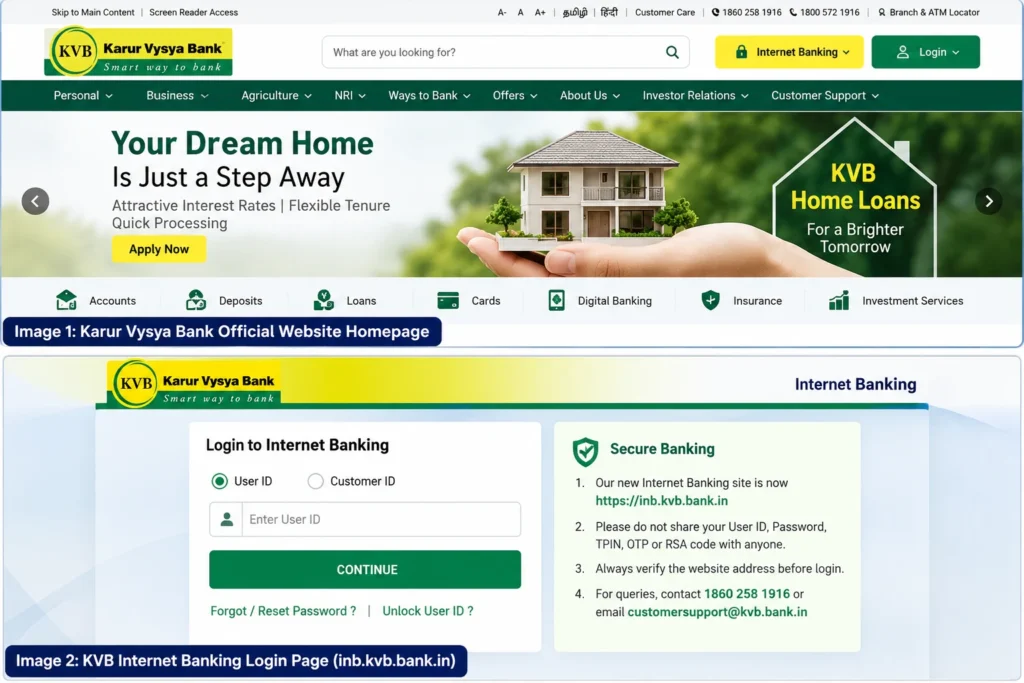
Karur Vysya Bank Net Banking allows eligible KVB customers to access account information, transfer funds, manage deposits, and use other banking services online. The official KVB Internet Banking portal is https://inb.kvb.bank.in/.
Existing customers can sign in using their assigned Internet Banking credentials and complete the bank’s required authentication. New retail customers can use the self-registration facility available through KVB’s official Internet Banking service.
This guide explains how to access KVB Net Banking, register for Internet Banking, reset a forgotten login password, change a Transaction PIN (TPIN), unlock a User ID, and solve common login problems.
KVB Net Banking – Quick Overview
| Particular | Details |
|---|---|
| Bank Name | Karur Vysya Bank (KVB) |
| Service | Internet Banking |
| Official Bank Website | https://www.kvb.bank.in/ |
| Official Net Banking Login | https://inb.kvb.bank.in/ |
| Official Login Gateway | https://www.kvb.bank.in/ilogin/ |
| Retail Registration | Self-registration through the official Internet Banking service |
| Corporate Registration | Based on the bank’s authorised registration process |
| Password Recovery | Security questions or bank-assisted recovery |
| Transaction PIN | Used for eligible financial transaction authorisation |
| User ID Unlock | Online, SMS or bank-assisted methods |
| Customer Support | 1860 258 1916 (local charges apply) |
| Official Support Email | customersupport@kvb.bank.in |
Important: WayAlert.in is an independent informational website. We do not provide banking accounts, process transactions, or collect passwords, PINs, OTPs, or other confidential customer information.
Official Karur Vysya Bank Net Banking Website
Karur Vysya Bank has announced the migration of its Internet Banking service to a newer official domain.
The current official Net Banking address is:
Customers can also start from KVB’s official secure login gateway:
https://www.kvb.bank.in/ilogin
The gateway provides a Continue to Login option and identifies the new Internet Banking website.
Why You Should Use the Current KVB Login URL
Some older articles and bookmarks may still refer to inb.kvbin.com.
Instead of depending on old login links, open the bank’s current official website and follow its Internet Banking instructions.
Before entering credentials:
- Check that the website uses HTTPS.
- Verify that the domain is
inb.kvb.bank.in. - Avoid login links received from unknown senders.
- Do not enter banking information on third-party websites.
- Use the official bank website if you are unsure about a link.
A website that looks similar to KVB’s login page is not necessarily operated by the bank.
How to Login to KVB Net Banking
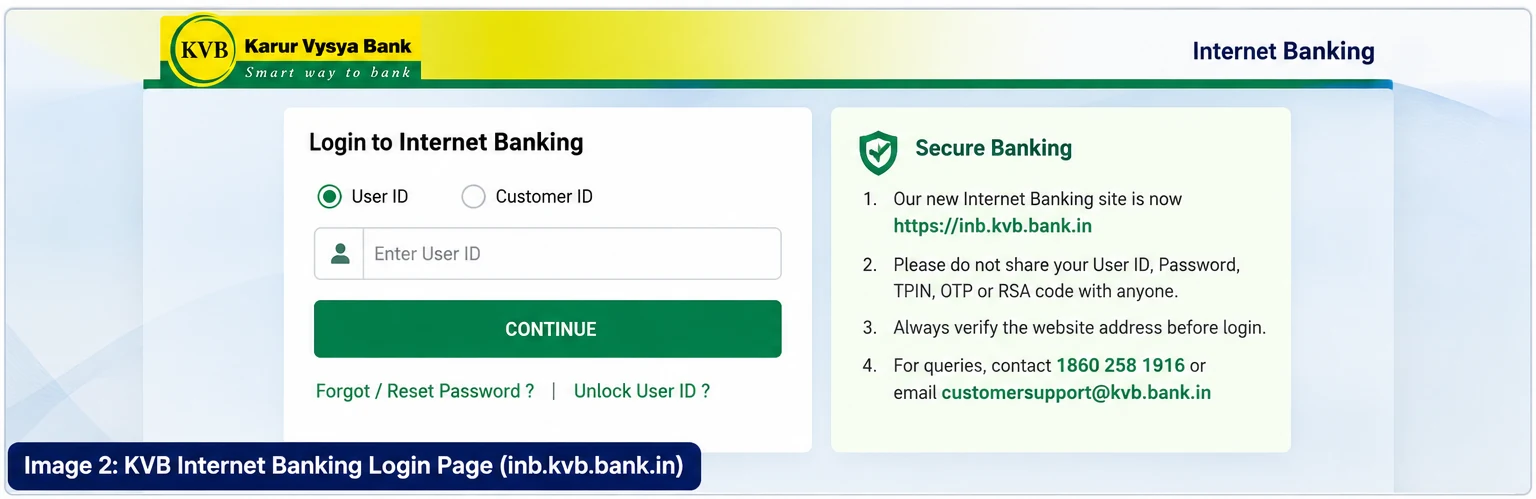
Customers with active Internet Banking access can follow these steps.
Step 1: Open the Official Portal
Open an updated browser on your computer or mobile device.
Visit:
You can also use the Internet Banking option on KVB’s official website.
Step 2: Identify Your Login Account
Follow the options displayed by the bank’s login application.
Depending on the current interface, you may be asked to identify your Internet Banking account using a User ID or another supported customer identifier.
Select the appropriate option and enter the required information.
Step 3: Enter Your Login Credentials
Provide the login credentials assigned to your Internet Banking account.
Check the information carefully before proceeding.
Do not share your login password with anyone, including people claiming to represent bank support.
Step 4: Complete Authentication
Follow the additional verification instructions displayed by the official portal.
KVB uses authentication controls for Internet Banking and eligible financial transactions. These may involve a Transaction PIN, OTP, or applicable RSA-based authentication, depending on the service.
Do not assume that every customer will see exactly the same verification screen.
Step 5: Access Available Banking Services
After successful authentication, you can use the functions available to your account.
These may include:
- Viewing account information
- Checking transactions
- Accessing statements
- Transferring funds
- Managing eligible deposits
- Using account-related customer services
Always log out after completing your banking activities.
Note: The bank may change its login interface or authentication sequence. Follow the instructions on the official portal rather than relying on older screenshots.
How to Register for KVB Internet Banking
Karur Vysya Bank confirms that retail customers can activate Internet Banking through the self-registration facility available from its official Internet Banking login service.
Retail Net Banking Registration
- Visit www.kvb.bank.in.
- Open the Internet Banking login service.
- Continue to the official Net Banking portal.
- Locate the self-registration or new-user registration option.
- Read the eligibility requirements and instructions.
- Enter the customer information requested by the bank.
- Complete the required identity verification.
- Follow the instructions for setting up Internet Banking access.
- Complete activation if your account is eligible.
- Return to the official login page and sign in.
The bank may require specific customer and account details during registration.
Important: Do not assume that the same debit-card details, OTP process, or registration fields apply to every customer. Provide information only when requested by KVB’s verified application.
What If Self-Registration Does Not Work?
If registration fails or the system cannot verify your account:
- Confirm that you are using the official portal.
- Check whether your account is eligible.
- Follow any error instructions shown by KVB.
- Contact the bank’s official customer support.
- Visit your branch if bank-assisted activation is required.
Avoid using unofficial registration agents or websites.
Retail vs Corporate KVB Internet Banking
KVB offers Internet Banking facilities to eligible individual and business customers.
However, retail and corporate customers may have different registration and access requirements.
| Feature | Retail Internet Banking | Corporate Internet Banking |
|---|---|---|
| Main Users | Individual customers | Authorised business users |
| Registration | Online self-registration available | Based on an authorised request |
| User Permissions | According to account eligibility | According to corporate permissions |
| Authentication | Bank-prescribed security process | Bank-prescribed business-user security |
| Assistance | Customer support or branch | Branch or corporate banking team |
Retail Customers
Eligible retail customers can use the self-registration facility through the official Internet Banking service.
The functions available after login depend on the customer’s account and permissions.
Corporate Customers
According to KVB’s official Internet Banking FAQ, corporate Internet Banking is enabled based on the request submitted at the time of account opening.
Business customers should contact their branch or authorised banking team for activation, additional users, or permission changes.
Retail registration instructions should not automatically be used for corporate accounts.
What Is TPIN in KVB Net Banking?
A Transaction PIN (TPIN) is a security credential used for applicable Internet Banking transaction authorisation.
The Transaction PIN is different from the login password used to access the account.
KVB’s official documentation describes authentication involving TPIN with OTP or RSA-based verification for certain banking operations.
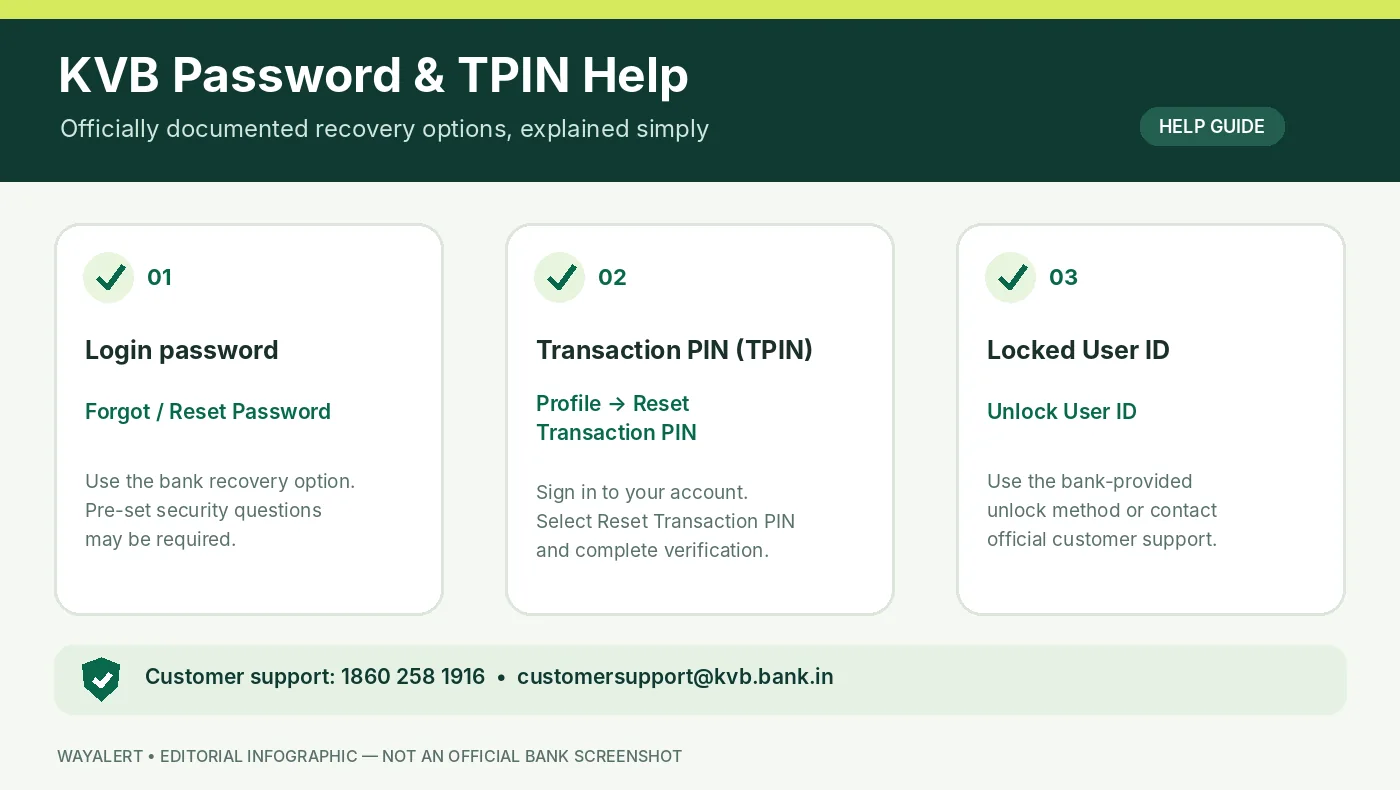
Login Password vs Transaction PIN
| Login Password | Transaction PIN |
|---|---|
| Used for Internet Banking login | Used for eligible transaction authorisation |
| Provides access to the account | Helps verify an authorised banking action |
| Has a login password recovery process | Has a separate reset process |
| Must remain confidential | Must remain confidential |
The Internet Banking Transaction PIN should not be confused with an ATM PIN, UPI PIN, mobile banking MPIN, or the telephone banking PIN used by the bank’s IVR service.
Use only the credential requested by the specific official banking service.
How to Reset KVB Net Banking Password
If you forget your KVB Internet Banking login password, the bank provides online recovery for customers who have already configured their security questions.
Other bank-assisted recovery options are available when online recovery cannot be used.
Method 1: Reset Password Online
- Visit the official KVB Internet Banking login page.
- Select Forgot / Reset Password.
- Follow the bank’s identity-verification process.
- Enter the requested Customer ID or other supported identifier.
- Answer the security questions previously configured for your account.
- Complete the required verification, which may involve TPIN and OTP or applicable RSA authentication.
- Follow the instructions to set a new login password.
- Return to the official login page after completing the reset.
KVB states that security-question-based password recovery is available only when the questions and answers were configured previously.
Method 2: Reset Password Through KVB Support
If you cannot use online recovery, KVB’s official FAQ lists the following alternatives:
Telephone support
Call 1860 258 1916. Local call charges apply.
Registered email
Contact customersupport@kvb.bank.in from your registered email address.
Home branch
Visit the branch where you maintain your account and request the approved recovery procedure.
KVB’s published FAQ describes registered-post delivery of replacement credentials for certain bank-assisted reset requests, generally within five working days. Confirm the current procedure and expected time directly with the bank.
Never send an existing password, OTP, debit-card PIN, or TPIN through email.
How to Reset KVB Transaction PIN
KVB’s official Internet Banking overview describes an online process for resetting the Transaction PIN.
Online TPIN Reset Steps
- Sign in to the official KVB Internet Banking service.
- Open Profile.
- Select Reset Transaction PIN.
- Answer the required security question.
- Complete any additional verification requested by the bank.
- Set your new Transaction PIN according to the displayed instructions.
- Confirm the reset.
This self-service option depends on the customer’s security-question setup and account eligibility.
If the option is unavailable, contact the KVB helpdesk or your branch for the appropriate recovery procedure.
Security tip: Never disclose a Transaction PIN to another person, even if they claim to be calling from the bank.
How to Unlock KVB Net Banking User ID
KVB provides several official methods for recovering a locked Internet Banking User ID.
Method 1: Online User ID Unlock
If you have already configured security questions:
- Open the official KVB Net Banking portal.
- Locate Unlock User ID.
- Follow the displayed account-identification process.
- Answer the required security questions.
- Complete any additional authentication.
- Confirm whether your access has been restored.
This option may not be available if security questions were not configured earlier.
Method 2: SMS-Based Unlock
KVB’s official Internet Banking guidance also provides an SMS-based unlock facility.
The bank publishes the required KVBNET command, customer identifier, and authorised SMS numbers on its official Internet Banking FAQ and overview pages.
Use the exact current instructions issued by KVB and send the message only from the mobile number registered with the bank.
SMS charges may apply.
Method 3: IVR or Customer Support
KVB’s Internet Banking FAQ describes an IVR-based unlock option.
Call:
1860 258 1916
Follow the official telephone-banking menu and complete the required identity verification.
Alternatively, contact:
Use your registered email address when submitting a support request.
Do not disclose login passwords, OTPs or transaction PINs to customer-support callers.
Services Available Through KVB Internet Banking
Eligible customers can perform several financial and non-financial activities using KVB Internet Banking.
The exact services depend on account permissions and current bank policies.
Account Information
Customers may be able to view savings, current, and other eligible accounts linked to their customer profile.
Available functions can include account balances and transaction information.
Fund Transfers
Authorised customers can use supported fund-transfer options, subject to applicable transaction limits, beneficiary requirements, and security checks.
Additional authentication may be necessary before a transfer is completed.
Deposit Services
The bank lists term-deposit-related features among its Internet Banking services.
Availability depends on the applicable account and product.
Account Statements
Internet Banking can help customers review account activity and access statements through available banking functions.
The bank also provides e-statement services under its published rules.
Customer Services
Other available functions may include customer requests, security settings, password changes, and account-related services.
Customers should check the authenticated portal for the options enabled for their account.
Common KVB Net Banking Problems and Solutions
| Problem | Recommended Solution |
|---|---|
| Old Internet Banking link | Use https://inb.kvb.bank.in/ |
| Incorrect password | Use the official password recovery process |
| User ID locked | Follow the approved unlock procedure |
| Forgot Transaction PIN | Try Profile → Reset Transaction PIN if eligible |
| Security questions not configured | Contact KVB for alternative recovery |
| OTP not received | Check registered contact details and bank instructions |
| Website not opening | Check URL, internet connection and browser |
| Session expired | Start a fresh login from the official portal |
| Corporate login issue | Contact the authorised corporate banking team |
KVB Net Banking Website Not Opening
If the official Internet Banking portal does not load:
- Confirm that the URL is correct.
- Check your internet connection.
- Try an updated browser.
- Ensure JavaScript is enabled if the application requires it.
- Close expired browser sessions.
- Open the service again from KVB’s official website.
- Contact the bank if the problem continues.
Do not use a third-party website as an alternative login portal.
KVB Net Banking OTP Not Received
If an OTP is required but does not arrive:
- Check that your registered mobile number is active.
- Confirm that your phone can receive SMS messages.
- Follow any resend instructions shown by the bank.
- Avoid unnecessary repeated OTP requests.
- Contact KVB if your registered contact details need updating.
Never ask another person to receive or share your banking OTP.
KVB Login Password Not Working
If your password is not accepted, avoid repeatedly guessing it.
Use the bank’s official password recovery service or seek assistance through authorised customer-support channels.
KVB Transaction PIN Not Working
Make sure you are using the Internet Banking Transaction PIN rather than a PIN for another banking service.
If the PIN is forgotten or blocked, follow the official reset instructions.
Do not share the PIN with anyone offering to fix the problem remotely.
KVB Net Banking Security Tips
Internet Banking contains sensitive financial information, so account security is essential.
Follow these precautions:
- Use only official KVB websites.
- Check the website address before login.
- Avoid suspicious links sent by SMS, email or messaging apps.
- Never share passwords, TPINs, OTPs or RSA security codes.
- Do not save banking credentials in a shared browser.
- Avoid public or shared computers for financial transactions.
- Keep your operating system and browser updated.
- Use unique, strong passwords.
- Log out after banking activities.
- Check your account statements regularly.
- Never install remote-access or screen-sharing applications at the request of unknown callers.
- Report suspicious transactions immediately through official channels.
For reporting suspected unauthorised transactions, KVB lists the toll-free number 1800 572 1916.
India’s National Cyber Crime Helpline is 1930.
Always confirm emergency contact details from the bank’s current official website.
Frequently Asked Questions
1. What is the official Karur Vysya Bank Net Banking website?
The official KVB Internet Banking portal is https://inb.kvb.bank.in/. Customers can also access the service through the official login gateway at https://www.kvb.bank.in/ilogin/.
2. How can I register for KVB Net Banking?
Eligible retail customers can use the self-registration facility available through KVB’s official Internet Banking login service. Follow the registration and verification instructions provided by the bank.
3. Can I access KVB Net Banking on a mobile phone?
The official Internet Banking service may be accessed using a compatible mobile browser. The bank also provides separate mobile banking services, which may use different credentials and authentication methods.
4. How do I reset my KVB Internet Banking password?
Select Forgot / Reset Password on the official login service. Online recovery is available when security questions have already been configured. Otherwise, contact the bank for an approved alternative.
5. What is TPIN in Karur Vysya Bank Internet Banking?
TPIN refers to the Transaction PIN used for authorising eligible Internet Banking transactions and certain security-related operations.
6. How do I reset my KVB Transaction PIN?
Eligible customers can log in, open Profile, select Reset Transaction PIN, answer the required security question, and complete the reset procedure.
7. How can I unlock my KVB Internet Banking User ID?
KVB provides online security-question recovery, SMS-based unlock, IVR support, and bank-assisted alternatives. Follow the current instructions on the official bank website.
8. What is the KVB Net Banking customer-care number?
KVB lists 1860 258 1916 for Internet Banking assistance. Local call charges apply.
9. Is KVB Net Banking the same as KVB DLite mobile banking?
No. Internet Banking is the bank’s web-based service, while KVB DLite is a separate mobile banking application. Some services and authentication requirements differ.
10. What should I do if I suspect Net Banking fraud?
Contact KVB through its official fraud-reporting channels immediately. The bank lists 1800 572 1916 for suspicious or unauthorised transaction reporting. You can also use India’s cybercrime helpline at 1930.
More Banking Guides on WayAlert
For additional banking login, account information, balance enquiry, and related service guides, visit our Banking Services section.
Always verify login links, customer-care contact information, and financial transaction instructions directly with the respective bank.
Official Sources
1. Karur Vysya Bank – Official Website
2. KVB – Official Internet Banking Login
3. KVB – Secure Login Gateway
https://www.kvb.bank.in/ilogin
4. KVB – Internet Banking FAQ
https://www.kvb.bank.in/faqs/faqs-internet-banking
5. KVB – Internet Banking Overview
https://www.kvb.bank.in/ways-to-bank/internet-banking/internet-banking-overview
6. KVB – Secure Internet Banking Tips
https://www.kvb.bank.in/secure-banking/secure-banking-tips/secure-internet-banking
7. KVB – Cyber Security Awareness
https://www.kvb.bank.in/cyber-security-awareness
Disclaimer: WayAlert.in is an independent informational website and is not affiliated with Karur Vysya Bank. This article is intended to help readers locate official banking services and understand publicly documented procedures. Login requirements, account permissions and security methods may change. For personal account assistance, transactions, credential recovery or suspected fraud, contact Karur Vysya Bank directly through its official channels.