
To download your SPARSH pension slip, sign in to the official SPARSH portal, open My Documents and select Pension Slip. Choose the available record for the month you need, then use the download or print option provided to save a copy.
This guide explains the SPARSH pension slip download process, how to save the document on your phone and what to check if you cannot log in or find a monthly slip.
It is intended for pensioners whose defence pension records are available in SPARSH. Receiving a pension in a bank account does not, by itself, mean that your pension slip is available on this portal.
What You Need Before Downloading Your Pension Slip
- Your SPARSH pensioner username and password.
- Access to your registered mobile number if account verification or recovery is required.
- The month and year for which you need the pension slip.
- A browser and a PDF viewer on your phone or computer.
Use the credentials issued for your own pensioner account. If you have forgotten them, follow the recovery options on the official login screen.
How to Download a SPARSH Pension Slip Online
1. Open the Official SPARSH Portal
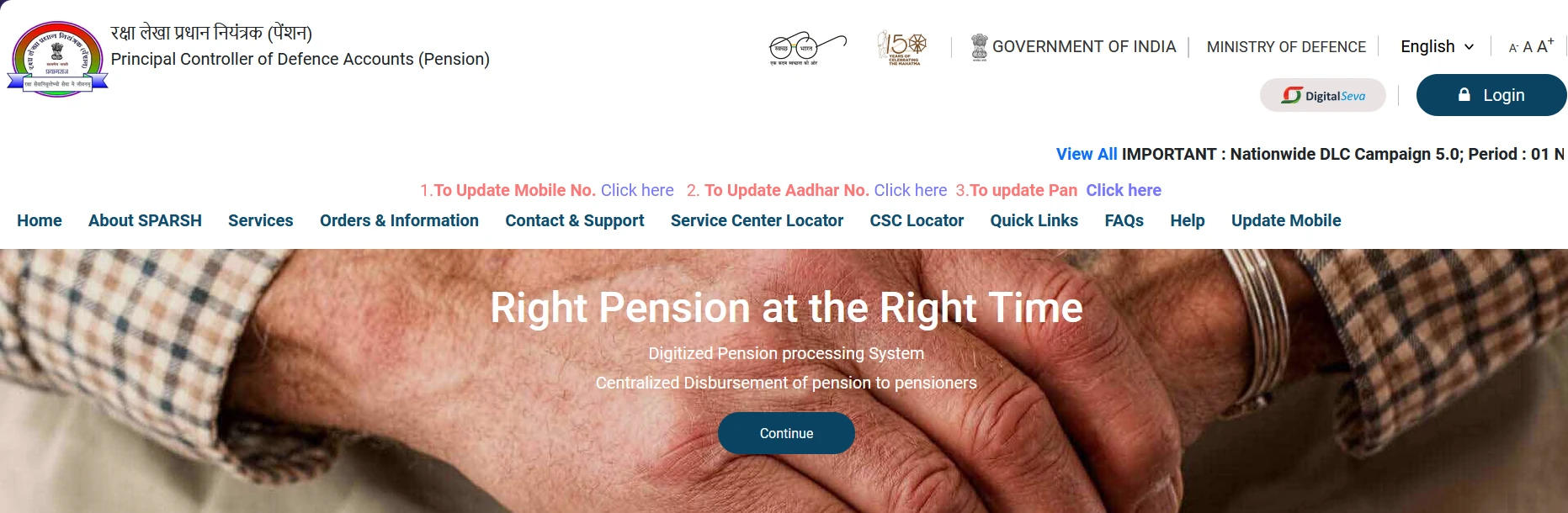
Visit the official SPARSH pension portal. Check that the website address belongs to sparsh.defencepension.gov.in, then select Login.
2. Sign In to Your Pensioner Account
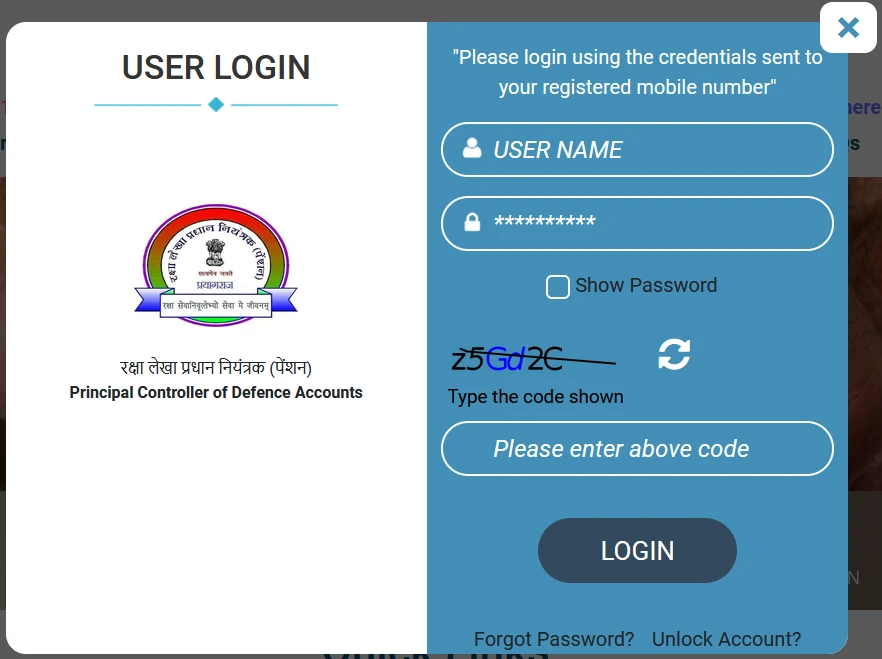
Enter your username, password and the captcha displayed on the login form. Select Login and complete any additional verification requested by the portal.
If the captcha is difficult to read, use its refresh control and enter the new code. The captcha in the screenshot below is only an example; enter the one displayed during your own session.
3. Open My Documents and Select Pension Slip
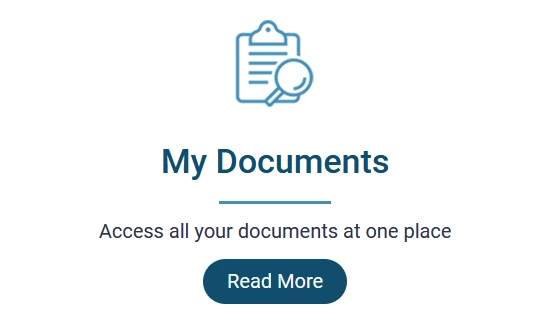
After signing in, go to My Documents > Pension Slip. This is the route identified in the official SPARSH FAQs for accessing pension slips.
The public homepage also displays a My Documents quick link, shown below. This screenshot identifies the homepage link; it does not show the pensioner dashboard or a downloaded slip.
4. Open the Required Monthly Record
Select the relevant month or period from the records available in your account. If the screen provides month and year filters, use them to locate the correct entry.
Before saving, check the pensioner details and payment period shown on the document. A file downloaded today may relate to an earlier month.
5. Download or Print the Slip
Use the download or print control provided for the selected record. If the document opens in a PDF viewer, use that viewer’s download or save option.
If a print view opens instead, you can select Save as PDF where your device supports it. Open the saved file to confirm that all pages are readable and that you have saved the slip rather than the login page.
Menu labels and document controls may change with portal updates. Follow the options displayed in your account.
How to Save and Print the Pension Slip on Mobile
Once the document opens on your phone:
- Use the PDF viewer’s download, save or share control.
- Choose a folder you can find again.
- On Android, check Downloads or recent files in your file manager. On iPhone, check the Files app and your selected save location.
- Open the saved copy and check the pension period.
- Use the document viewer’s print option, or transfer the file to a computer for printing.
You can rename the file to something clear, such as SPARSH-Pension-Slip-October-2026.pdf, after confirming the month. Keep the contents unchanged.
SPARSH Pension Slip, PPO and Bank Statement: What Is the Difference?
| Document | What it helps you check |
|---|---|
| Monthly pension slip | The pension payment breakdown for the period shown, including the amounts and deductions recorded. |
| Pension Payment Order (PPO) | The official order authorising pension and recording the applicable pension details. |
| Bank statement or passbook | The amount actually credited to your bank account and its transaction date. |
If you need proof that money reached your account, check the bank transaction as well as the pension slip. If an organisation asks for your PPO, a monthly pension slip may not meet that request.
What to Check on Your Downloaded Pension Slip
Review these details wherever they appear:
- Pensioner information: Confirm that the document belongs to you.
- Payment period: Check the month and year.
- Pension components: Review the earnings or other amounts listed.
- Deductions and recoveries: Identify entries that explain a difference in the net payment.
- Net amount: Compare it with the corresponding bank credit, allowing for separately recorded transactions.
If an entry is unclear or appears incorrect, request clarification through official SPARSH support. Downloading another copy will not correct an error in the underlying pension record.
SPARSH Pension Slip Not Showing or Downloading?
| Problem | What to do next |
|---|---|
| Forgotten password | Select Forgot Password? on the official login form and complete the requested verification. |
| Account is locked | Use the Unlock Account? option displayed on the login form and follow its instructions. |
| Captcha is rejected | Refresh the captcha and carefully enter the new code shown on your screen. |
| Verification message does not arrive | Check reception on your registered mobile and use the resend option if offered. If you no longer have that number, seek help through the official mobile-update or support route. |
| The required month is missing | Recheck the selected period and available records. Contact SPARSH support if the required slip remains unavailable. |
| The PDF does not open | Retry the download, check your connection and available storage, and try an updated browser or another PDF viewer. |
| The document opens but cannot be found later | Save it explicitly, then check Downloads, recent files or the folder you selected. |
A missing slip alone does not establish that your pension has stopped. Check the relevant bank credit and obtain clarification about the missing document separately.
Where to Get Official SPARSH Help
Use Contact & Support or the Service Center Locator on the official portal. The SPARSH FAQs also describe service centres as an alternative for pensioners who need assistance, with SPARSH services available without charges.
Before contacting support, note:
- The month or period affected.
- The exact error message.
- Whether the issue occurs before login, while opening the slip or during download.
- The date and approximate time of your attempt.
Keep your pension identifiers available for authorised support, but do not post your PPO, bank details, password or OTP in public comments. For general contact-verification guidance, see our guide to checking trusted bank contact details.
Frequently Asked Questions
Can I download my SPARSH pension slip without logging in?
The personal-document route described here requires access to your pensioner account. A public My Documents link does not make your pension slip publicly accessible.
Can I download previous months’ pension slips?
You can access the periods available in your account. If you need an older slip that is not listed, ask official support how to obtain it. Do not assume every historical period will be available online.
Can family pensioners use this guide?
Family pensioners whose records and account access are available in SPARSH should use their own authorised credentials. Do not assume the deceased pensioner’s login is the correct account to use.
Is downloading the slip the same as submitting a life certificate?
No. Viewing a pension document and completing pensioner identification or a life certificate are separate tasks. Downloading a slip does not complete identification requirements.
Do I need to log in every time I read the saved PDF?
A PDF saved on your own device can generally be opened without logging in again. You need account access to retrieve another document from the portal.
What if the pension amount differs from my bank credit?
Compare the same period, review the deductions and any separately recorded payments, and keep both records available. Raise an official enquiry if you cannot reconcile the difference.
Official reference: SPARSH FAQs hosted by DRDO (PDF).
WayAlert is an independent information website. Account access, pension records and corrections are handled by the relevant official authorities.