

To download a Maha-UPLABDHI pension statement, sign in to the official app, open Pension Payment History, access the available record for the period you need and use its PDF download option. Open the saved file to check that you have the correct statement.
The app provides pension information and downloadable records for Maharashtra pensioners. This guide focuses on finding your payment history, saving a readable copy and checking common download problems.
The instructions below describe the general workflow. Follow the controls displayed in your installed app version; button wording and layout may differ.
Before You Start
Keep these ready:
- The official Maha-UPLABDHI app.
- Your working pensioner login.
- The month or period for which you need a statement.
- An internet connection and space to save the file.
If you have not installed the app, use its official listing on Google Play or the Apple App Store.
For background information about the pension website, read our Nivrutti Vahini login guide.
How to Download Your Maha-UPLABDHI Pension Statement
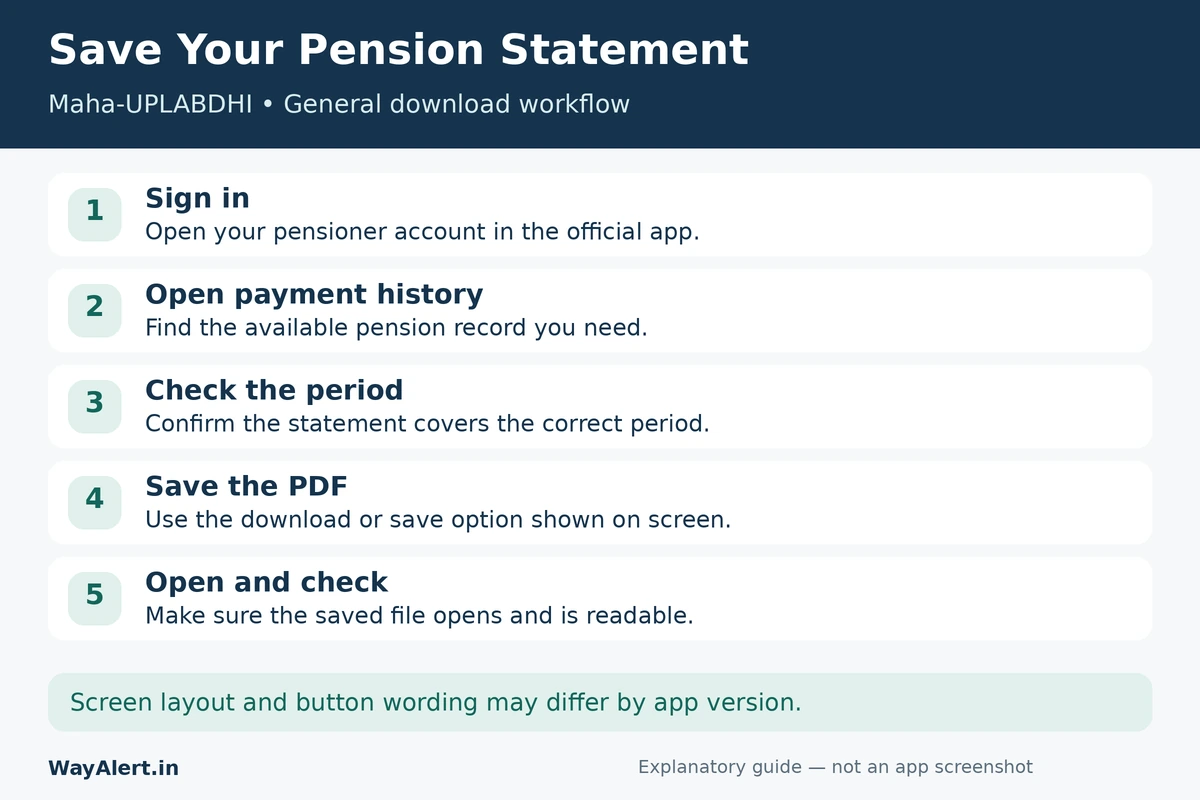
1. Sign In to Your Account
Open Maha-UPLABDHI and use your PPO number and password, or the registered-mobile OTP login option.
First-time users need a personal Nivrutti Vahini account. Resolve any account-access problem before attempting to download a statement.
2. Open Pension Payment History
Find the pension payment-history section after signing in. This is the relevant service for reviewing pension payment records.
Look through the available periods and open the record you need. If the screen offers year or month filters, use them to narrow the results.
3. Check the Selected Record
Before downloading, confirm that you have opened your own pension information and the intended period.
For example, if you need a September record, check the period shown in the report itself. Do not rely only on the date when you downloaded the file.
4. Use the PDF Download Option
Use the PDF download control available for the record. Allow the file or preview to finish loading before leaving the screen.
If your phone presents a save-location choice, select a folder you can find again. If it opens a PDF preview, use the saving option available in that viewer.
5. Open the Saved PDF
Open the saved copy and check that its pages display correctly.
A clear filename such as Pension-Statement-September-2026.pdf can make your personal records easier to organise. Rename the file only after confirming the period; keep the document contents unchanged.
Where Is the Downloaded Pension Statement?
The location depends on your phone and how the file was saved.
- Android: Open your file manager and check recent files or Downloads.
- iPhone: Open Files and check Recents or the folder you selected when saving.
- Shared or cloud storage: Check the destination you chose if you saved the document through another app.
If you cannot find it, search for recently saved PDF files. Seeing a statement on screen does not always mean that a copy has been saved locally.
Pension Statement Not Showing or Downloading?
Start by identifying whether the problem concerns the record itself or the downloaded file.
| Problem | What to try |
|---|---|
| The required period is missing | Recheck the selected period and available records. Ask your treasury office about a record that remains unavailable. |
| The download does not finish | Check your connection and available storage, then retry. |
| The PDF is blank or will not open | Download a fresh copy and try opening it with another PDF viewer. |
| You saved the wrong record | Return to payment history, check the period and download the correct record. |
These checks may resolve a selection or file problem. They cannot correct an error in an official pension record.
If a record appears incorrect, contact the relevant treasury or pension office. Note the affected period and describe what is missing or different.
For an app problem, the official Google Play listing provides support details under App support.
Check These Details Before Printing or Sharing
Review the pensioner’s name, PPO number and statement period wherever these appear. Make sure every page is readable.
If you are checking whether money reached your bank account, also check your bank statement or passbook. A pension report and a bank transaction record serve different purposes.
Share the document only with the person or organisation that needs it. Avoid uploading pension records to public comments or forums.
Frequently Asked Questions
Can I download a Maha-UPLABDHI pension statement as a PDF?
Yes. The official app listing includes pension statements in PDF format. Access the available pension record and use its download option.
Can I print the downloaded statement?
Yes. Once the PDF opens correctly, you can print the saved file using a PDF viewer or a computer. Check the period and all pages before printing.
What if the month I need is unavailable?
Check the available periods again. If the record is still missing, contact your treasury office rather than assuming that the missing entry confirms a payment problem.
Do I need to log in again to read a saved PDF?
A PDF saved locally can generally be opened without signing into the app again. Downloading another record requires access to your account.
About this guide: WayAlert is an independent information website. Official pension records, corrections and account services are managed by the relevant government authorities.