
Quick answer: For IRCTC ticket booking, open the official IRCTC train search. Enter your stations and travel date, choose a train and class, and select Book Now on the classic site or Book on the beta site. Sign in if prompted, enter passenger details, review the fare, and pay. Check that the e-ticket and PNR appear in your booking history.
The classic site and the beta site use different booking buttons. Follow the steps below for the screen you see.
How to book a train ticket on IRCTC
1. Open IRCTC and search for trains
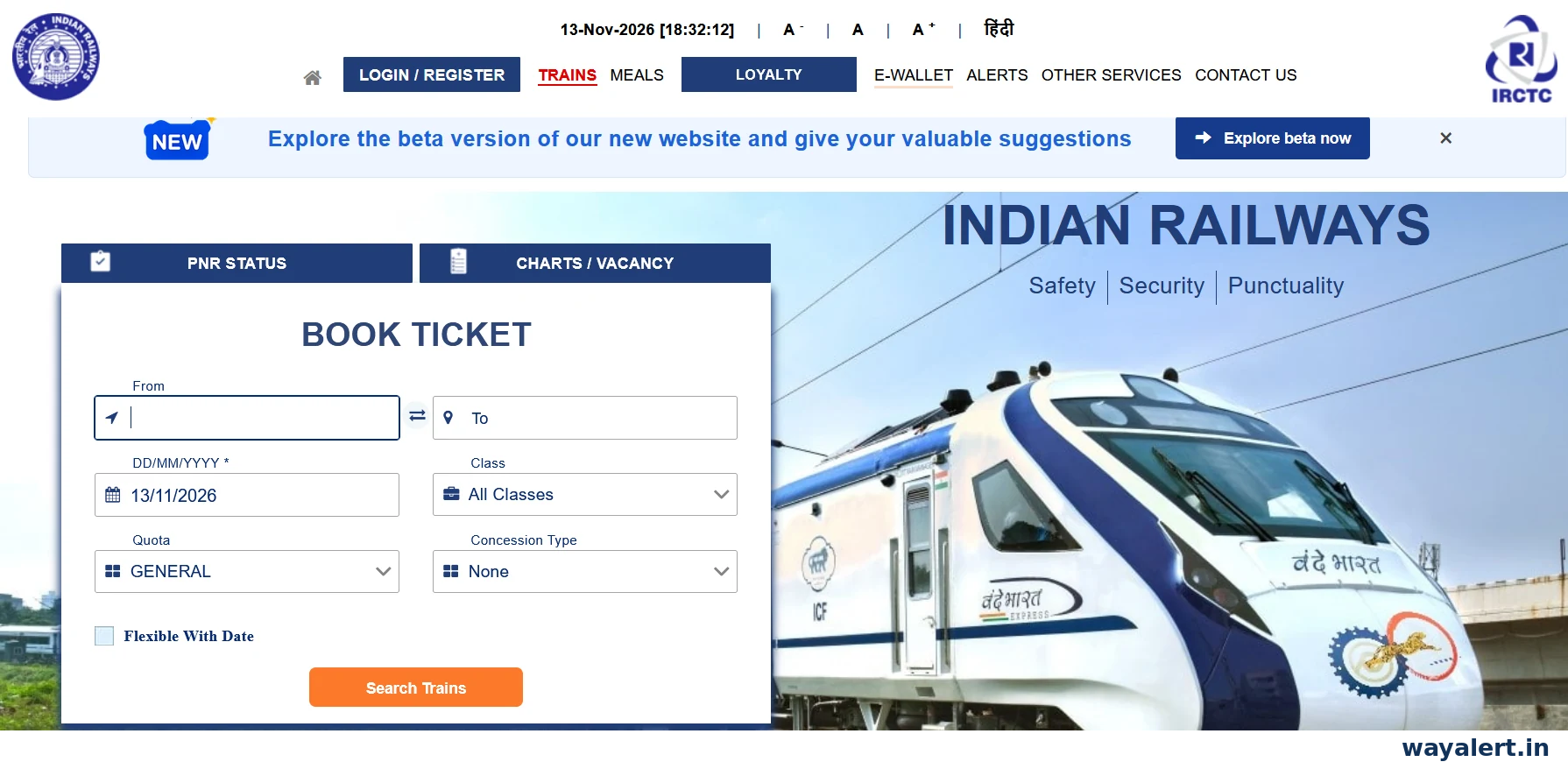
On the classic site, look for the Book Ticket form. Select your departure and arrival stations from the suggestions, choose the journey date, and leave the quota on General for a regular booking. Keep All Classes if you want to compare options, then select Search Trains.
Check the station code: A city may have several stations. For example, New Delhi (NDLS) and Hazrat Nizamuddin (NZM) are different stops. Check the station code again in the train results before you book.
2. Compare availability and choose a class
On the classic results page, select the class or its Refresh control to see the availability and fare. Common class codes include SL (Sleeper), 3A (AC 3 Tier), 2A (AC 2 Tier), CC (AC Chair Car) and 2S (Second Sitting). Check the departure time, boarding station, destination, and arrival date, especially for overnight trips. Select Book Now for the date and class you want.
Available means seats or berths are open when you check. RAC (Reservation Against Cancellation) lets you travel if it remains your final status, but a full berth isn’t guaranteed. WL means waitlisted. When every passenger on an e-ticket remains waitlisted after charting, that e-ticket cannot be used to board. See IRCTC’s waitlisted e-ticket rules.
3. Sign in and enter passenger details
Sign in with your IRCTC account when prompted. If you’re new, use Register on the classic site or Sign Up in the beta login window. See our IRCTC registration guide if you need help creating an account.
Enter each passenger’s name as shown on their ID, age, gender, and berth preference where available. Add a separate entry for each passenger you’re booking for. Check the contact number if the form asks for one, and confirm the boarding station is where you plan to get on. A berth preference is a request; assignment depends on availability. Select Continue to review the booking.
4. Review the booking and pay
On the review screen, check the train, date, boarding station, destination, class, quota, and passenger names. Check the final total for everyone travelling, since the search results show the fare for one adult. Choose a payment method shown at checkout, such as UPI or a card, and follow the instructions to pay.
5. Find the PNR and save your e-ticket
Once IRCTC issues the ticket, look for the PNR on the confirmation page. Open the Print Reservation Slip or Print ERS option to view your Electronic Reservation Slip. You can save it using your browser’s Save as PDF option. If you close the confirmation page, open the booking again under My Account → My Transactions → Booked Ticket History. Use the IRCTC PNR status guide to check whether the ticket is confirmed, RAC, or waitlisted.
How to book on the IRCTC beta website
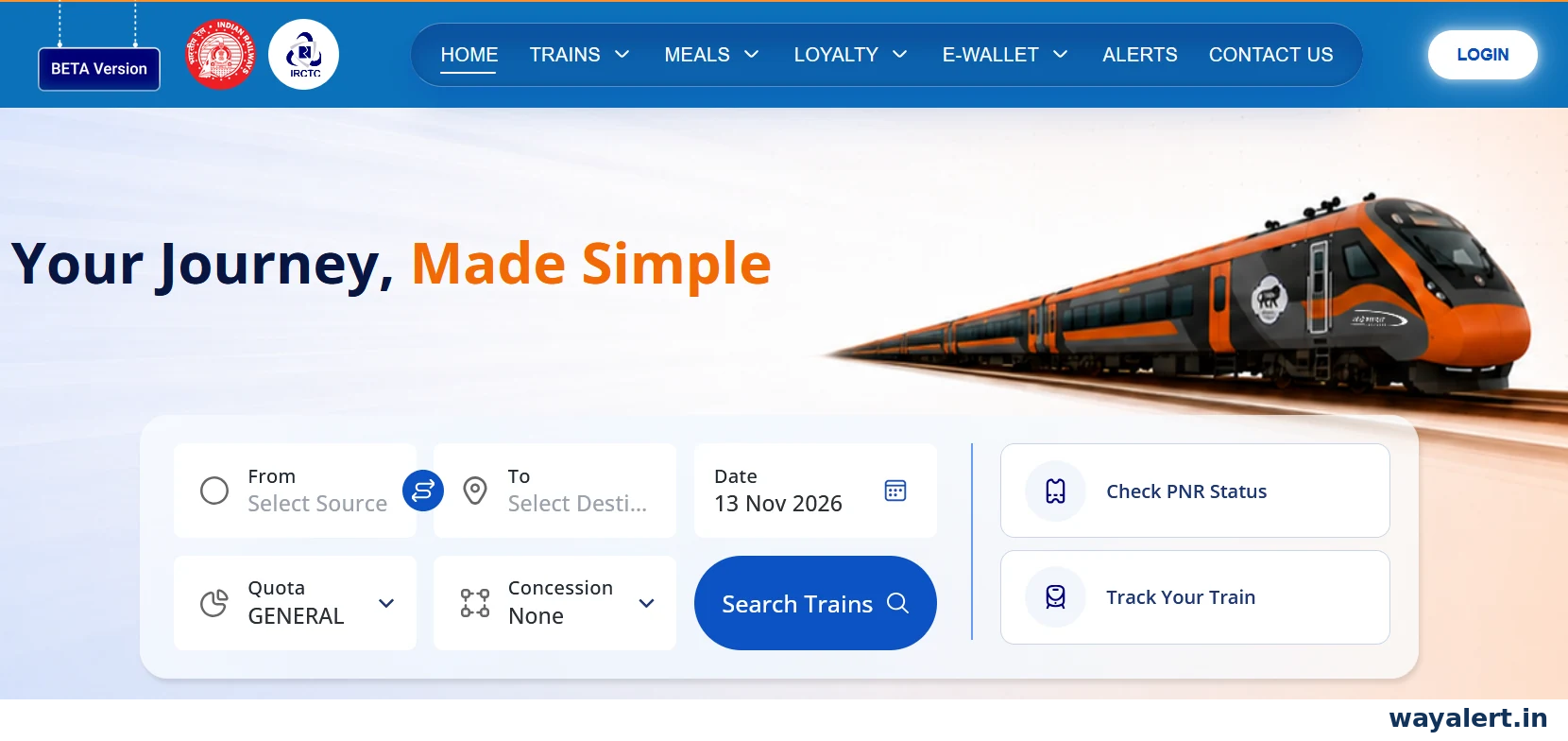
If the classic page shows Explore beta now, you can use it to open the IRCTC beta train search. On the beta screen, select From, To, Date, and your quota, then choose Search Trains.
On the results page, select Check Availability on a train card. The expanded card shows the classes, current status, and fare per adult. Choose Book next to your class to continue. If the beta login window opens, use User Login for a personal booking.
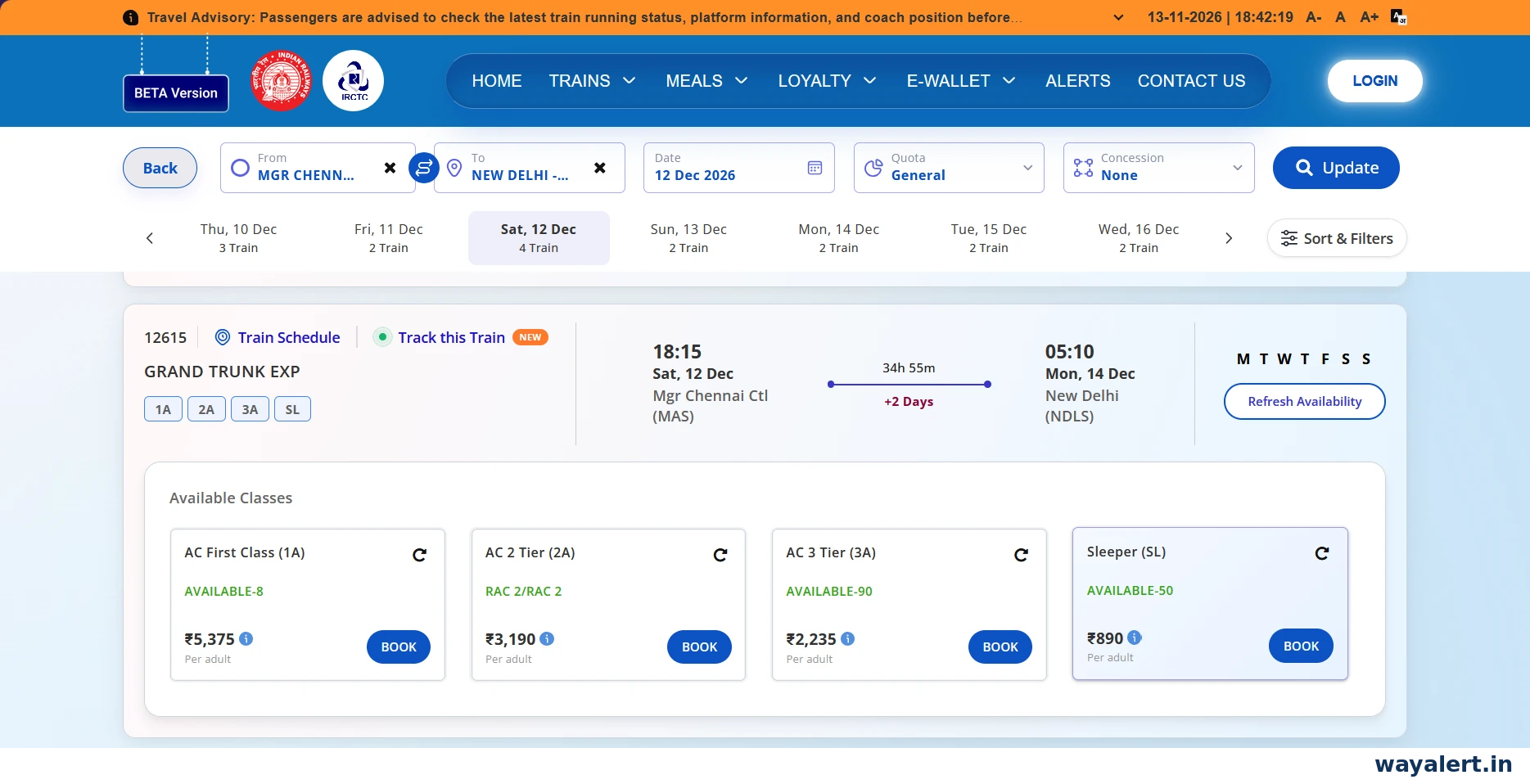
After selecting Book, continue with passenger details, payment, and saving your e-ticket. Button labels can differ on the beta site.
Advance booking, Aadhaar and Tatkal
Advance reservation: For most trains, the booking window is 60 days, excluding the journey date. Some trains have a shorter window. Use the date and availability shown for your train. See the official advance reservation circular.
Opening day General bookings: To book a General reserved ticket online on the day advance reservations first open for that journey, use an Aadhaar-authenticated IRCTC account. This is the opening day of the booking window. See the Ministry of Railways clarification.
Tatkal: Select Tatkal in the quota field if it is available for your journey. For eligible trains and classes, Tatkal opens at 10:00 a.m. IST for AC and 11:00 a.m. IST for non-AC, one day before the train leaves its first station. If the train starts on Monday and reaches your station on Tuesday, check Tatkal on Sunday. Online Tatkal requires an Aadhaar-authenticated IRCTC account and Aadhaar-based OTP verification. Check IRCTC’s Tatkal FAQ and the official Aadhaar and OTP rules.
What to do if booking doesn’t go through
Money debited but no ticket on screen: Check Booked Ticket History before paying again. If there is no booking, check the failed transaction or refund history and save the transaction reference. For an unresolved payment, use the official IRCTC support portal.
Booking button is unavailable: First select a class and check availability. Then confirm the date and quota and check whether the train has opened for booking. Try another train, class, or date if the option you want isn’t available.
Site or login won’t load: Reopen the official train-search page and sign in again. If the beta page fails, try the classic IRCTC website. If you’ve forgotten your credentials, follow our IRCTC password reset guide. If the problem happened after payment, check booking history first.
IRCTC ticket booking FAQs
Does a PNR mean my ticket is confirmed?
A PNR identifies the booking. Check the current reservation status separately to see whether it is confirmed, RAC, or waitlisted.
Can I travel without printing my IRCTC e-ticket?
You can show your IRCTC e-ticket or reservation SMS with an accepted ID for a passenger on the booking. See the official e-ticket FAQ for ID requirements.
Where do I cancel an IRCTC ticket or check my refund?
Open Booked Ticket History, select the ticket, and choose the cancellation option if available. Check the refund history in your IRCTC account for the status. Eligibility and deductions depend on the ticket type, its status, and when you cancel. See the official IRCTC cancellation rules.