

Maha-UPLABDHI app login supports your PPO number and password, or your registered mobile number and OTP. First-time users need a personal Nivrutti Vahini account. Mobile login requires a verified number on that portal.
Maha-UPLABDHI is the Maharashtra government’s app for accessing pension information and related documents. This guide explains where to download it, how to prepare your account and what to check if you cannot log in.
Already have an account? Go directly to the login section. New users should complete the personal-account setup first.
Download the Official Maha-UPLABDHI App
Choose the official store link for your phone:
- Android: Maha-UPLABDHI on Google Play
- iPhone: Maha-UPLABDHI on the Apple App Store
Google Play identifies the publisher as Government of Maharashtra. The Apple listing names Maharashtra Information Technology Corporation Limited as the developer.
Install the app from the appropriate listing. If you already have it, check whether an update is available.
Using the official download links helps you identify the correct app without relying on similarly named applications or unfamiliar APK websites.
First-Time Users: Create Your Personal Pensioner Account
Open the official Nivrutti Vahini pension portal.
The portal publishes these common pensioner-entry credentials:
| Field | Enter |
|---|---|
| Username | PENSIONER |
| Password | ifms123 |
| Captcha | The code displayed on your screen |
Submit the details to enter the portal.
Then create your personal account:
- Choose Work list → Create Pensioner User before e-PPO.
- Select your treasury, enter your PPO number, select the pension bank and branch, and enter your account number.
- Click Create User and save the displayed credentials.
The documented initial password is ifms123; use your current password if changed.
Before submitting, compare the information with your pension documents. Check long numbers carefully rather than entering them from memory.
If the portal cannot match your records, contact your relevant treasury office. Repeatedly changing details just to make the form accept them can create further confusion.
For a broader explanation of the website, see our Nivrutti Vahini login guide.
How to Log In to Maha-UPLABDHI With Your PPO Number
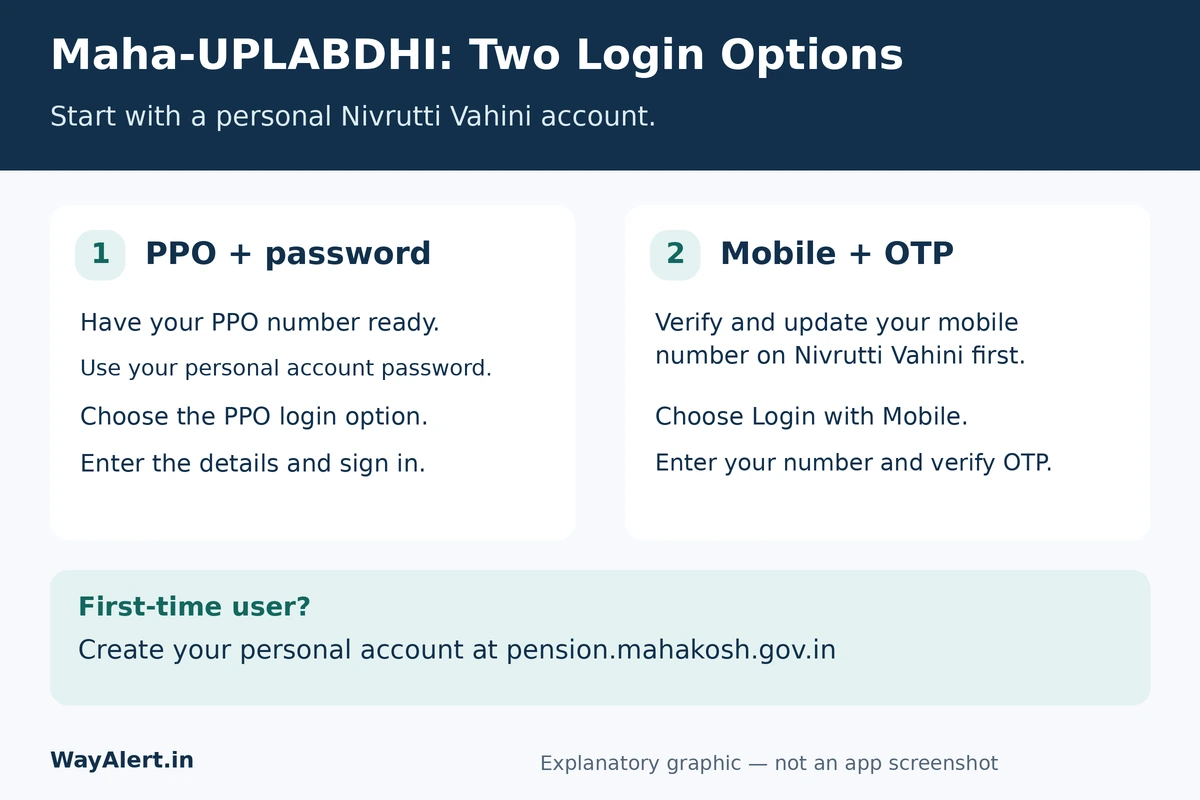
PPO stands for Pension Payment Order. Keep your pension document available so you can enter the number accurately.
- Open the official Maha-UPLABDHI app.
- Choose the PPO login option.
- Enter your PPO number and account password.
- Submit the login details.
Your PPO number is different from your bank account number. Check which detail the field requests before entering it.
If your phone fills in a saved password, make sure it is the current password for this account. An outdated saved password may cause a failed login after you have changed it.
How to Log In With Your Mobile Number and OTP
First, sign into Nivrutti Vahini with your personal account:
- Enter your mobile number.
- Select Generate OTP.
- Enter the received code and choose Verify.
- Select Update.
In the app, select Login with Mobile and complete OTP verification.
Keep the phone receiving the message nearby. If a family member is helping, remain present while your account is being accessed and enter the verification code on the official screen.
How to Reset a Forgotten Password
On the portal, choose Forgot Password, enter your personal username (PEN_ followed by your PPO number), complete OTP verification and select Reset Password.
The official guide specifies ifms123 after reset. After restoring access, replace the default password through your personal account’s password settings.
For illustrated instructions, use the official Maha-UPLABDHI login guide.
Maha-UPLABDHI Login Not Working? Check These Details
Start with the exact message shown on your screen.
| Problem | What to check |
|---|---|
| Login details are rejected | Compare the PPO number with your document and check the password entered. |
| A mobile-number error appears | Review the mobile-update steps above and confirm which number you saved. |
| The OTP does not arrive | Check the entered number, phone signal and incoming messages before requesting another code. |
| The app freezes or will not open | Close and reopen it, check your connection and look for an official app update. |
These are basic checks, not guaranteed fixes for a government-service outage or an account-record problem.
If you still cannot access the app, contact your relevant treasury or department office. Keep the following information ready:
- The exact error message.
- Whether you attempted PPO login or mobile login.
- The approximate date and time of the problem.
- Your app version, if available.
A screenshot can help explain the problem, but hide sensitive information before sharing it. Never post your password, OTP or full bank-account details in public comments.
What Can You Access After Login?
The official app listing includes:
- Monthly pension details and payment history.
- Pension statements in PDF format.
- Income certificates and Form 16.
- Pension documents through the e-PPO library.
- Government resolutions and treasury announcements.
Choose the service you need, then check the pensioner details and document period before downloading or printing a record.
Frequently Asked Questions
Can I log in to Maha-UPLABDHI without a password?
Yes. Use Login with Mobile and verify the OTP sent to your registered number. You must first have a personal Nivrutti Vahini account with your mobile number verified and updated.
Can I use PENSIONER as my Maha-UPLABDHI app username?
The common PENSIONER username is for the pension portal’s public entry. For the app, use your own PPO number and personal-account password, or the registered-mobile OTP option.
Why does Maha-UPLABDHI say my mobile number is not registered?
Your number may not have been registered or updated in your personal Nivrutti Vahini account. Sign into that account, complete mobile OTP verification and select Update before trying mobile login again.
Who should I contact if I still cannot log in?
Contact your relevant treasury or department office. Explain the exact error and whether you used PPO or mobile login. Never share your password or OTP.
About this guide: WayAlert is an independent information website. Account verification and pension services are handled through the official government portal and app.